Who Changed the Schema? Find Out in SQL Server
A job that ran in nine minutes on Tuesday takes forty on Thursday. A report that has worked for a year suddenly throws an invalid column name error. Nobody in the standup will admit to touching the table. Somebody changed something, and SQL Server will not tell you who changed the schema.
How do I find out who changed the schema in SQL Server? SQL Server does not keep a usable record of who changed the schema: the default trace only holds a few days of events, and the transaction log is not readable. Database Health Monitor's Structure Change Log closes that gap with a per-database DDL trigger, logging the exact statement, the login, the host, and the application behind every change.
Where people look first
The instinct is to check SQL Server's default trace, and it is not built for this. On a quiet server it might hold a week of object events. On anything busy, it can roll over inside a day, and by the time anyone thinks to look, the row that mattered is gone. Database Health Monitor takes a different approach with its Structure Change Log: a trigger you install once, in the databases you choose, so the record does not depend on how busy the server happened to be that week. The transaction log will not help either. It records physical page changes, not statements, and it was never meant to be read like a report.
Who changed the schema, not just what
The point of this report is not to tell you an index was dropped. It is to show you the statement that dropped it, character for character, along with the login that ran it, the machine it came from, and the application it came through. Event Type narrows the search to something like ALTER_TABLE, CREATE_INDEX or DROP_PROCEDURE, but the Statement column is where the real answer lives.
The report exists at two scopes. From the server tree, Instance Level Reports shows every recorded change across every audited database on the instance. From a database's own Historic node, the same report filters to that one database. Start at the instance level when you only know something changed somewhere, and switch to the database level once you know where.
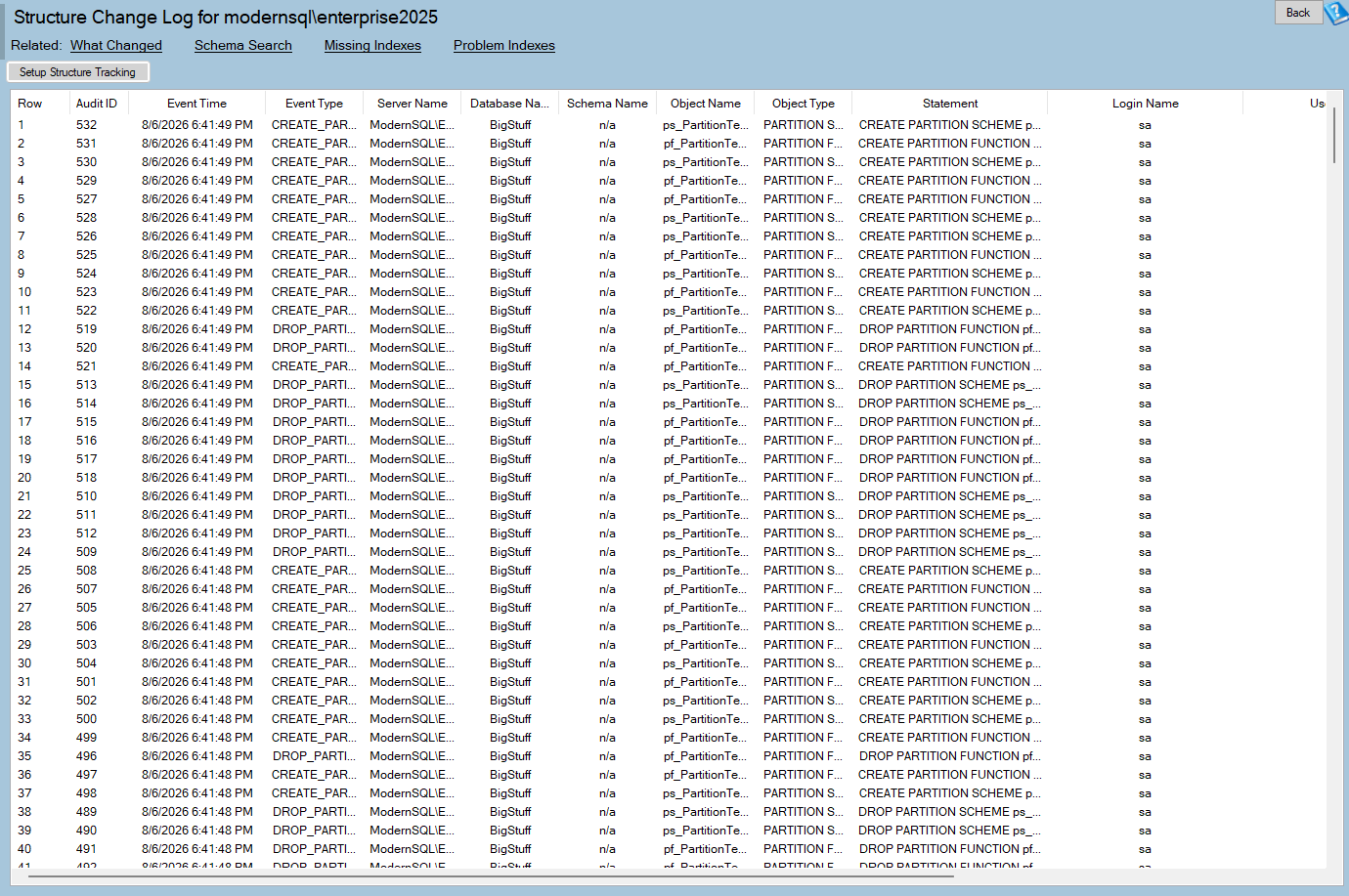
Structure Change Log is one of the reports in Database Health Monitor. It runs against your own servers, and it takes about a minute to have this same screen open on one of them.
Turning on the audit
None of this works without a historic database already configured for the instance, the piece of infrastructure covered in SQL Server Historic Reporting: One Page, One Click. Once that exists, turning the audit on is one button. Setup Structure Tracking, top left of the report, opens a list of every online user database with a checkbox next to each one. A box already ticked means that database already has the trigger.
- Tick a database and apply, and it gets one database-level trigger named
trg_DDLAudit - Untick a database and apply, and the trigger is removed
master,model,msdbandtempdbnever appear on the list, because they are not meant to be audited this way- Turning a database on takes
db_owneron that database, orsysadminon the instance
The trigger only records from the moment it exists. Turn it on today and the trail starts today. There is no way to recover DDL that ran last month, because nothing was capturing it then.
Reading the grid
Rows sort by Event Time, newest first. The grid itself shows one line per statement, and a real ALTER TABLE is usually more than one line, so double-click a row to open the statement in a window built for reading and copying rather than skimming.
| Column | What it tells you |
|---|---|
| Event Type | The kind of DDL that ran, for example ALTER_TABLE or DROP_INDEX |
| Schema Name and Object Name | Which object the statement touched |
| Object Type | What kind of object it was |
| User Name | The database user the login mapped to |
Of the three columns that point at a person, only Login Name comes from the connection itself. Host Name and Application Name are whatever the client claims, and a script can say it is Management Studio if it wants to. Treat them as strong evidence, not proof.
Microsoft SQL Server Management Studio, paired with a personal login and a workstation host name, usually means a person sat at a keyboardSQLAgent - TSQL JobStepmeans a job ran it. Job History will say which one- An application's own name with a service account login usually means a deployment or an ORM, and whether that is expected is worth confirming

Patterns worth watching for
- A burst of changes from one login at one time is almost always a deployment. Compare the timestamps to your release record
- Repeated
CREATE_INDEXandDROP_INDEXon the same object is either an expensive maintenance script or two people disagreeing. Duplicate Indexes and Unused Indexes usually show what got left behind - Changes made from Management Studio directly against a production database are worth a conversation regardless of what the change was
- An application name nobody recognizes is the start of an access review, with Security Posture and Orphan Users as the next stop
- Nothing recorded since a certain date means either genuinely nothing changed, or the trigger is gone. Look for a
DROP_TRIGGERrow on that date; if there is not one, a restore probably replaced the whole database, trigger included
An empty page is not always good news. It can mean nothing changed, or it can mean the database was never audited in the first place, and the grid looks the same either way. Check the setup dialog before you conclude anything from silence.
The trigger only fires on DDL, so ordinary selects, inserts, updates and deletes never touch it, and the overhead is not something you will notice. One thing is worth knowing before switching this on everywhere: if the history database becomes unreachable, a failing trigger rolls back the statement that fired it. That is not a defect, it is what auditing DDL with a trigger means, and it is a reason to choose which databases you audit rather than tick every box out of habit.
The full column reference and the rest of the FAQ live in the Structure Change Log documentation, including exactly what the setup dialog installs and removes.
What to check on your own server
- Open Setup Structure Tracking on your instance and note which databases already show a ticked checkbox
- Tick any production database missing the checkbox and apply, knowing the audit only starts from that moment
- Sort the Structure Change Log grid by Event Time and read Application Name before Login Name
- Double-click a DDL row to read the full statement instead of trusting the summary columns
- Re-open the setup dialog after any restore to confirm the trigger is still there
Try Database Health Monitor Today
It replaces guessing who changed the schema with the exact statement, login and timestamp that proves it. Database Health Monitor shows it on every instance you connect, in the time it takes to open the report.
Download Database Health Monitor and run the Structure Change Log report against your own server. There is nothing to configure first, and you will know inside a few minutes whether it tells you something you did not already know.
Related reading: SQL Server CPU History: Read a Week in One Glance. A heat map of recorded CPU, hours down and days across, shows which hours are always busy, which day broke the pattern, and whether the box ever really was idle.