msdb Is Too Big? Here’s What’s Actually Filling It
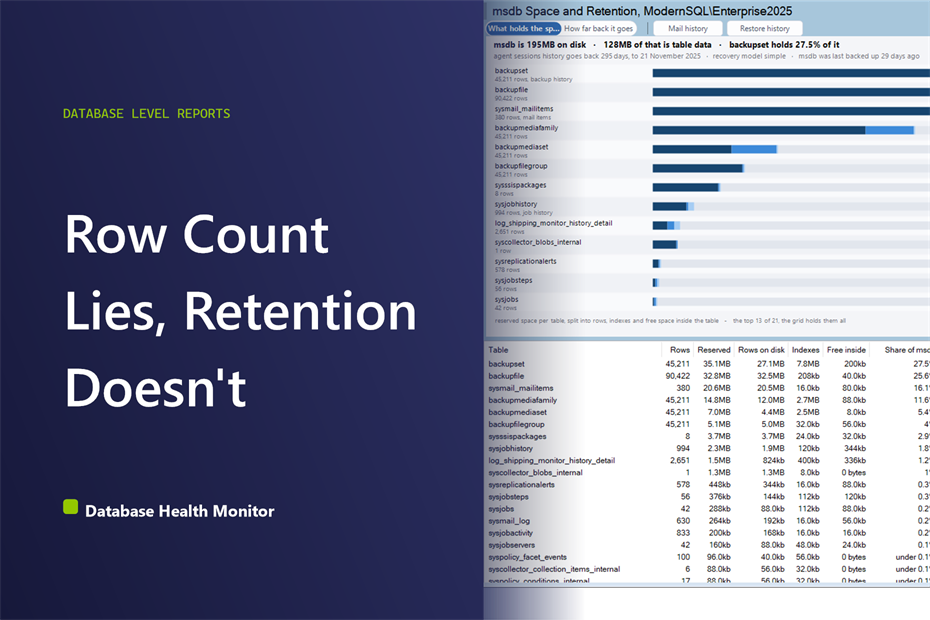
msdb is too big again, and nobody changed anything to cause it. No new databases got added. No new backup job got scheduled. The backup job finished in the same window it always does. It just grows, quietly, the same way it did the last time somebody shrank it, and the same way it will grow back after this one.
Why do people keep saying msdb is too big, and what's actually filling it up? msdb is too big almost always because of unbounded history, backup and restore records, Agent job history, and Database Mail logs nothing ever purges. The honest measurement is not row count or file size but days of retention: how far back each table's oldest row actually goes.
Database Health Monitor's msdb Space and Retention report is built for that exact moment, the one where somebody reaches for DBCC SHRINKDATABASE before finding out what is actually sitting inside the file. Shrinking buys a little room and a false sense that the problem is solved. A week later the free space fills back in, because nothing about what was filling msdb in the first place has changed.
In this post
- Why Shrinking msdb Doesn't Fix It
- Why msdb Is Too Big in the First Place
- What Holds the Space
- How Far Back It Goes
- Reading the Grid
- The Purge Nobody Should Run Without Reading First
- Permissions and the One Timeout to Know About
- What Actually Shrinks the File
Why Shrinking msdb Doesn't Fix It
Deleting rows does not shrink anything by itself. It moves space from the rows a table is using into the free space already sitting inside that table's own pages, space SQL Server will happily reuse for the next insert, but will not hand back to the drive. Getting it out to the file takes a rebuild of the table, and getting it off the file and back to the disk takes a shrink on top of that. Skip the purge and run only the shrink, and there is nothing to give back yet, which is the whole reason the drive fills right back in.
| Part of the bar | What it is | What moves it |
|---|---|---|
| Rows on disk | The data itself | A purge |
| Indexes | What the non-clustered indexes are holding for that table | The same purge, just slower |
| Free inside | Space the table already owns but isn't using | A rebuild, then a shrink |
Why msdb Is Too Big in the First Place
msdb is one of the only system databases that is mostly somebody else's data rather than the engine's own bookkeeping. Every backup and restore SQL Server has ever run lands a row in dbo.backupset and its related tables. Every Agent job, and every run of every job, lands a row in dbo.sysjobhistory. Database Mail keeps its own ledger of what it sent and what happened to it. Maintenance plans and third-party monitoring tools add their own tables on top of that, and SQL Server has no idea those exist either. None of it has an expiration date. SQL Server does not delete any of this on its own, ever, and a fresh install of msdb starts small enough that nobody thinks about it until a drive alert does the thinking for them.
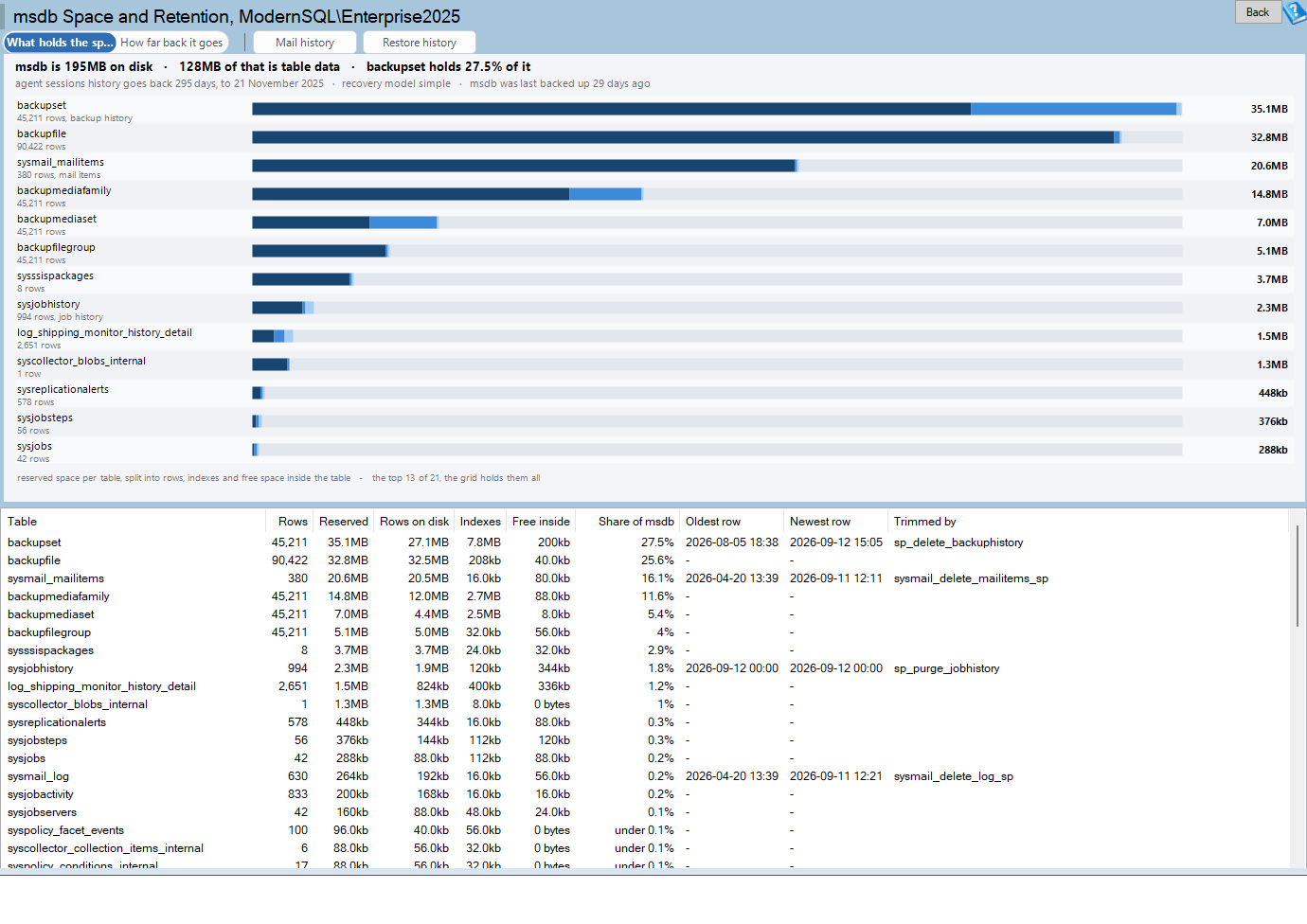
msdb Space and Retention is one of the reports in Database Health Monitor. It runs against your own servers, and it takes about a minute to have this same screen open on one of them.
What Holds the Space
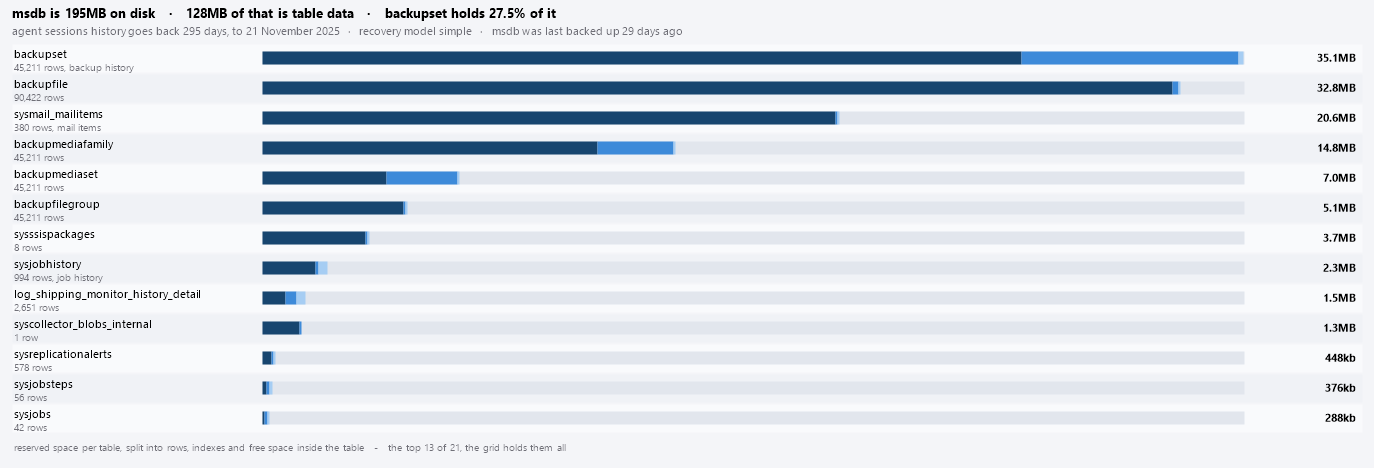
Switch to the What holds the space view and every table gets one bar, longest first, split into the rows on disk, the non-clustered indexes, and the free space already sitting inside pages the table holds but isn't using. Every segment inside a bar is one color in different shades, not four separate colors, because they are three answers to the same question rather than three different findings, and red is reserved for something actually broken, never just for the fourth item down the list. Double-click a Database Mail table and the report opens Database Mail History for it directly. Double-click a restore table and it opens Restore History instead. Tables under 64 KB never make the chart at all, which matters more than it sounds: msdb ships with roughly two hundred tables, and all but a dozen of them are empty catalogs holding a single page each.
How Far Back It Goes
Flip to the other view and the same tables get measured a completely different way, not by size, but by how many days of history each one is holding, with the procedure that would trim it named right on the bar. Rows are a symptom. Days are a decision somebody has or hasn't made. Two years of tiny rows from a mail log nobody reads anymore is a retention policy nobody actually set. Three weeks of rows from a third-party backup tool, writing one row per file per database per interval, can outweigh the rest of the database put together. A forty gigabyte msdb is almost always that second case, not the first. That's the number people quote in a ticket, and it's the wrong one to lead an investigation with. The row count and the day count can pick different winners, and that disagreement is the useful part. It's the whole reason this view exists next to the other one instead of replacing it.
Reading the Grid
The grid underneath both charts lists every table with its row count, its reserved space, the same rows, indexes and free space split as separate columns, and its share of the whole database as a percentage. Two columns matter more than the rest: Oldest row and Newest row. Oldest row turns amber once it passes a year, which is a cheap way to spot a table that has been accumulating for longer than anyone planned. Read the two together and you get the real shape of the problem. An old oldest row sitting next to a recent newest row is the ordinary shape of a source nobody has ever purged, still writing today the way it was writing years ago. An old date in both columns instead usually means a feature that got switched off a long time back, its history left behind and forgotten rather than growing. Share of msdb turns a raw byte count into a percentage of the whole database, which is usually the number that actually convinces somebody a table needs attention.

The Purge Nobody Should Run Without Reading First
sp_delete_backuphistory on an instance that has been left alone for years can run for hours, and for every one of those hours it holds locks on the same tables Agent writes to at the end of every job. That isn't a decision any report should make for you behind a click. The Trimmed by column names the procedure for each table, right down to the ones nobody wrote a procedure for at all, marked not installed by SQL Server, because whatever put them there, a backup tool, a monitoring agent, a maintenance script someone wrote years ago, is the only thing that will ever clean them out. Right-click a row and the statement to run it is sitting there ready to copy, but nothing runs on its own. Somebody still has to open a maintenance window and paste it in themselves.
Permissions and the One Timeout to Know About
The report needs exactly one permission: VIEW DATABASE STATE on msdb, because that's what sys.dm_db_partition_stats requires to answer at all. That's a narrower ask than it sounds: it doesn't grant access to the data inside any table, only to the space and metadata around it. It isn't one of the built-in Agent roles either, so a login that only has those gets a message instead of an empty chart. The other thing worth knowing before you run this against a server you haven't looked at in a while: the read has a 180 second timeout. On an instance where msdb has been left alone for a decade, reading the partition statistics is usually the slow part, and backup history and job history are the two tables most likely to hold tens of millions of rows and make it that way. All of it comes from a handful of catalog views and the tables SQL Server already writes to:
sys.dm_db_partition_statsfor the reserved, used and row counts behind every bardbo.backupset,dbo.restorehistory,dbo.backupfile,dbo.backupmediafamilyanddbo.backupmediasetfor the backup ledger's oldest and newest rowsdbo.sysjobhistoryfor Agent job historydbo.sysmail_mailitemsanddbo.sysmail_logfor Database Maildbo.sysmaintplan_logdetailfor maintenance plan history
What Actually Shrinks the File
Purging moves rows out. Rebuilding the table is what returns the space those rows left behind to the file itself. Only a shrink afterward returns that space to the disk, and running a shrink before either of those steps just spins the drive for nothing, because there's nothing released yet to give back. Before running any of it against msdb, check whether msdb itself has actually been backed up, and how recently. It isn't the only system database worth that habit: master Backup Out of Date? Here's How to Check It walks through the same question for master, where the answer matters just as much before anyone runs a rebuild. That's the sequence that actually gets msdb smaller, not just smaller until the next thing writes to it again.
The full column-by-column reference for this report, including every message it can show, is in the msdb Space and Retention documentation.
What to check on your own server
- Check how old the oldest row is in
dbo.backupsetanddbo.sysjobhistorybefore assuming row count alone is the problem - Compare each table's rows-on-disk against its free-inside space before assuming a purge alone will shrink the file
- Confirm msdb's own recovery model and last backup date before running any large delete against it
- Note which tables have no built-in trim procedure at all, since only whatever installed them will ever clean them up
- Check the row limiter on SQL Server Agent's job history retention, which controls how large
sysjobhistorygrows
Try Database Health Monitor Today
It shows exactly which msdb table is eating the space and how many days of history each one is holding, instead of leaving you to guess from a row count. Database Health Monitor shows it on every instance you connect, in the time it takes to open the report.
Download Database Health Monitor and run the msdb Space and Retention report against your own server. There is nothing to configure first, and you will know inside a few minutes whether it tells you something you did not already know.