Who Can See SSRS Reports? Check Broken Inheritance
Somebody in finance says they can open the payroll summary, and nobody can explain why. The folder around it is locked down to one team. The report itself, though, is readable by far more people than that, and clicking through the portal folder by folder is a slow way to learn who can see SSRS reports.
How do I find out who can see SSRS reports on my report server? Read the role assignments in the report server catalog, starting with the items that no longer inherit from their folder. Those items hold the surprises. Then list Content Manager, Publisher and System Administrator holders. This shows who can see SSRS reports by assignment, though Windows groups still need expanding outside the catalog.
Database Health Monitor has a report built for exactly this question: SSRS Permissions. It reads the report server catalog directly and puts every role assignment on one screen. The interesting part is not the list. It is the handful of rows where somebody stopped an item from inheriting.
Why the portal answers the wrong question
The portal is good at showing you one item at a time. Open a folder, open its security page, read the list. Repeat for the next folder. On a server with a few hundred reports, nobody finishes.
There is a second problem. The portal shows what the person reading it is allowed to see. A report server administrator and a plain Browser do not get the same picture. You want the whole picture, including the parts you did not know existed.
And the model underneath is simple, which is exactly why it goes wrong. Permissions behave like file system permissions. A folder carries a policy. Everything under it inherits that policy. Give one report a policy of its own and it stops inheriting, permanently, until someone resets it.
That is the whole trick. One report in a folder everybody can read ends up readable by one person. Or one report in a locked folder ends up readable by everybody. Both are the same event, and both are invisible from the folder.
Count the breaks, not the folders
So measure something different. Do not count folders or users. Count the places where inheritance broke, and for each one, who holds which role there.
In the catalog this is Catalog.PolicyRoot. A policy is shared by every item that inherits it, so the report shows each policy once, on the item where somebody set it, with a count of the items carrying that policy. A folder with ten reports and three assignments is three rows, each reaching eleven items. That is why the grid is short even on a big server. The Items column tells you how far each assignment reaches.
The report also keeps the root folder out of the flagged set. The root's policy is the starting point for the whole server, and a Content Manager there exists on every report server. Flagging it would flag the administrator every time.
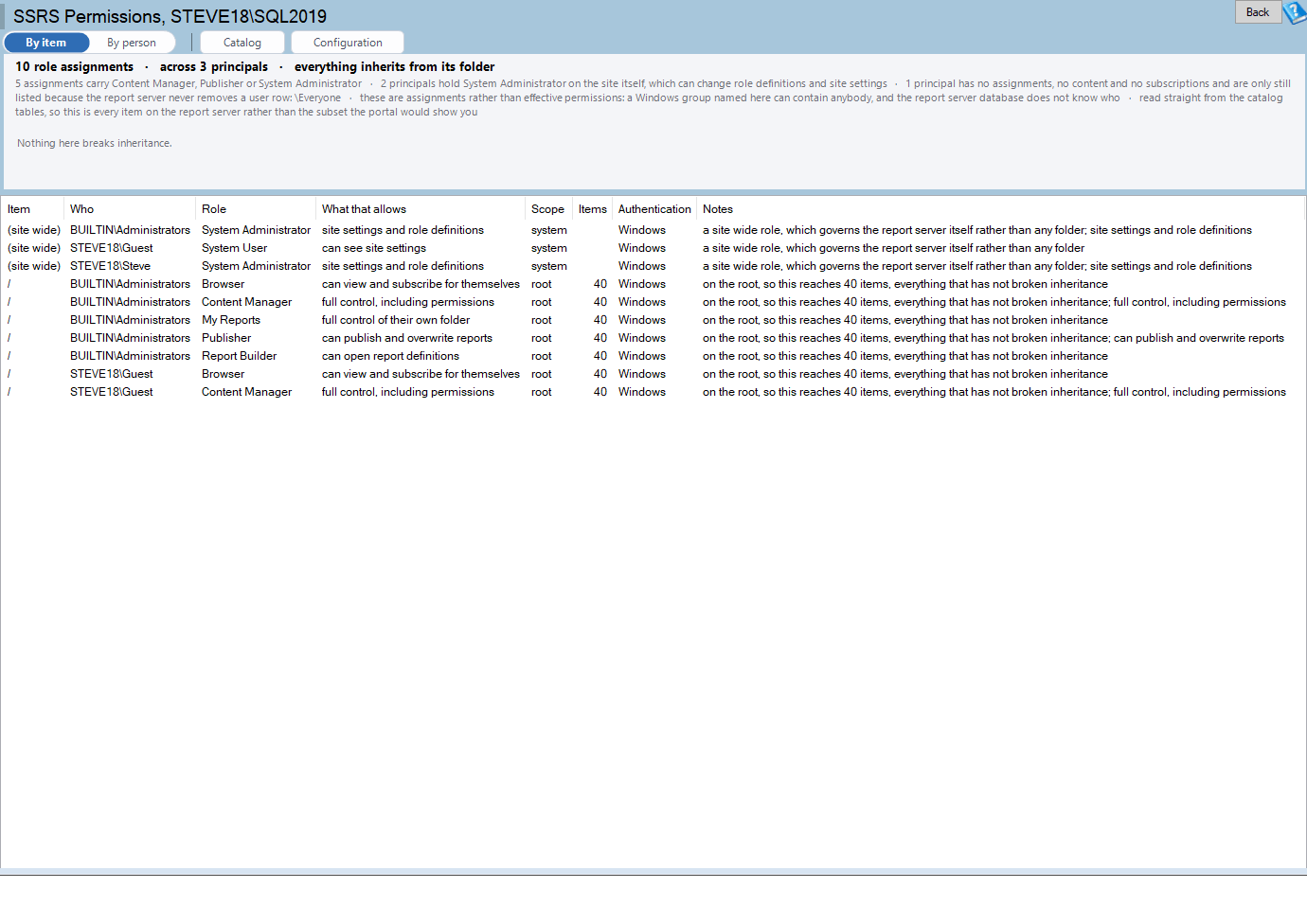
SSRS Permissions is one of the reports in Database Health Monitor. It runs against your own servers, and it takes about a minute to have this same screen open on one of them.
Two views of the same assignments
The toolbar switches between By item and By person. Pick the one that matches the question in your head.
By item draws one bar per assignment on an item with permissions of its own. Every bar is the same length, because these are findings rather than quantities. The label is the item, the line underneath says who holds which role, and the value on the right is the role.

| Bar color | What it means |
|---|---|
| Red | Content Manager, Publisher or System Administrator on an item with permissions of its own |
| Amber | Any other assignment on an item with permissions of its own |
Red bars get an amber outline as well, and they sort first. Those three roles can change what other people see, so a stray one is a small security finding. If nothing breaks inheritance, the chart says so. That is a perfectly good result.
By person flips it. One bar per principal, longest first by assignment count, with anyone holding a powerful role drawn amber and outlined and everyone else green. Hover and you get the assignment count, how many of them can change what others see, and how many sit on an item that does not inherit. It is the quickest way to find the account that quietly accumulated six Content Manager grants.
Reading the grid and the leftovers

Each row is one assignment. Item is the catalog path where it was set, / for the root, or (site wide) for a system role. Scope tells you whether the assignment is system, root or own permissions. Role and Scope turn red or amber when the item broke inheritance. Authentication shows Windows, or Not Windows with the report server's own type number, which helps you spot an account that did not come from your directory.
Under the chart, the findings line adds the counts worth acting on. How many powerful assignments sit on items with their own permissions. How many principals hold System Administrator on the site itself. And how many principals have no assignment, no content and no subscriptions, with the first three names.
That last count is the leftovers of people who have gone. A report server adds a dbo.Users row the first time it sees somebody and never removes it. The report finds the rows with nothing attached: no PolicyUserRole row, no item they created or last modified, no subscription they own. Those are safe to ask about, and a good prompt for a wider cleanup. If you are already chasing stale leftovers on the SQL Server side, msdb Is Too Big? Here's What's Actually Filling It covers the same kind of slow accumulation.
What this does not tell you
Be clear about the limit. This shows assignments, not effective permissions. A Windows group named in the grid can contain anybody, and the report server database does not record who. You still have to expand the group in your directory. The report tells you which group to expand, and on which item.
It also changes nothing. The security tables have to stay consistent with each other and with a policy the report server service caches, and the portal changes them correctly. Use this page to find the item, then fix it in the portal. Right click a grid row to copy the item path or the principal name, or to open that item in SSRS Catalog Inventory, so the trip from finding to fixing is short.
It needs SELECT on dbo.PolicyUserRole, dbo.Policies, dbo.Catalog, dbo.Users, dbo.Roles and dbo.Subscriptions, and the query gets 90 seconds. The full column reference is in the SSRS Permissions documentation.
What to check on your own server
- Open the By item view and list every item that has permissions of its own, ignoring the root folder
- Review each Content Manager, Publisher and System Administrator assignment on those items and confirm somebody still needs it
- Note which principals hold System Administrator on the site itself and compare them with the people who administer the server
- Compare the principals with no assignments, content or subscriptions against your current staff list
- Expand every Windows group the grid names, because the report server database does not record who belongs to it
Try Database Health Monitor Today
It shows every SSRS role assignment, the items that broke inheritance from their folder, and the leftover users, without clicking through the portal folder by folder. Database Health Monitor shows it on every instance you connect, in the time it takes to open the report.
Download Database Health Monitor and run the SSRS Permissions report against your own server. There is nothing to configure first, and you will know inside a few minutes whether it tells you something you did not already know.
Related reading: How Big Should master Be? What a Normal Size Is. If master is the database that looks wrong instead, this post explains what a normal size is, why a large one means user objects, and which fixed properties are worth checking.
Related reading: SQL Server Seek vs Scan: Why a Flat Read Count Lies. This post explains why a steady read count can hide an index sliding from seeks to scans, and how tracking the seek share exposes it before queries slow down.