Evaluating a SQL Server Monitor With Sample Data
You will hear it constantly: you cannot judge a SQL Server monitoring tool until you have pointed it at a real server. That is wrong. Database Health Monitor opens on a Welcome Page with a card that fills the whole product with sample data, and it needs no instance and no credentials to do it.
Can I evaluate a SQL Server monitoring tool with sample data instead of a real server? Yes. You can evaluate a SQL Server monitoring tool without a server. Database Health Monitor's Explore sample data card opens every report the capture covers against a recorded dataset from a real SQL Server running a generated workload. Nothing connects, nothing is written, and writes are refused. Real servers can be connected alongside it.
The page appears on the first run, and again whenever you disconnect the last server. It has three cards, one click each: connect, explore, tour. On a trial installation a line at the foot counts the days you have left. Three cards sounds simple, and it is. The trouble is in how people read them.
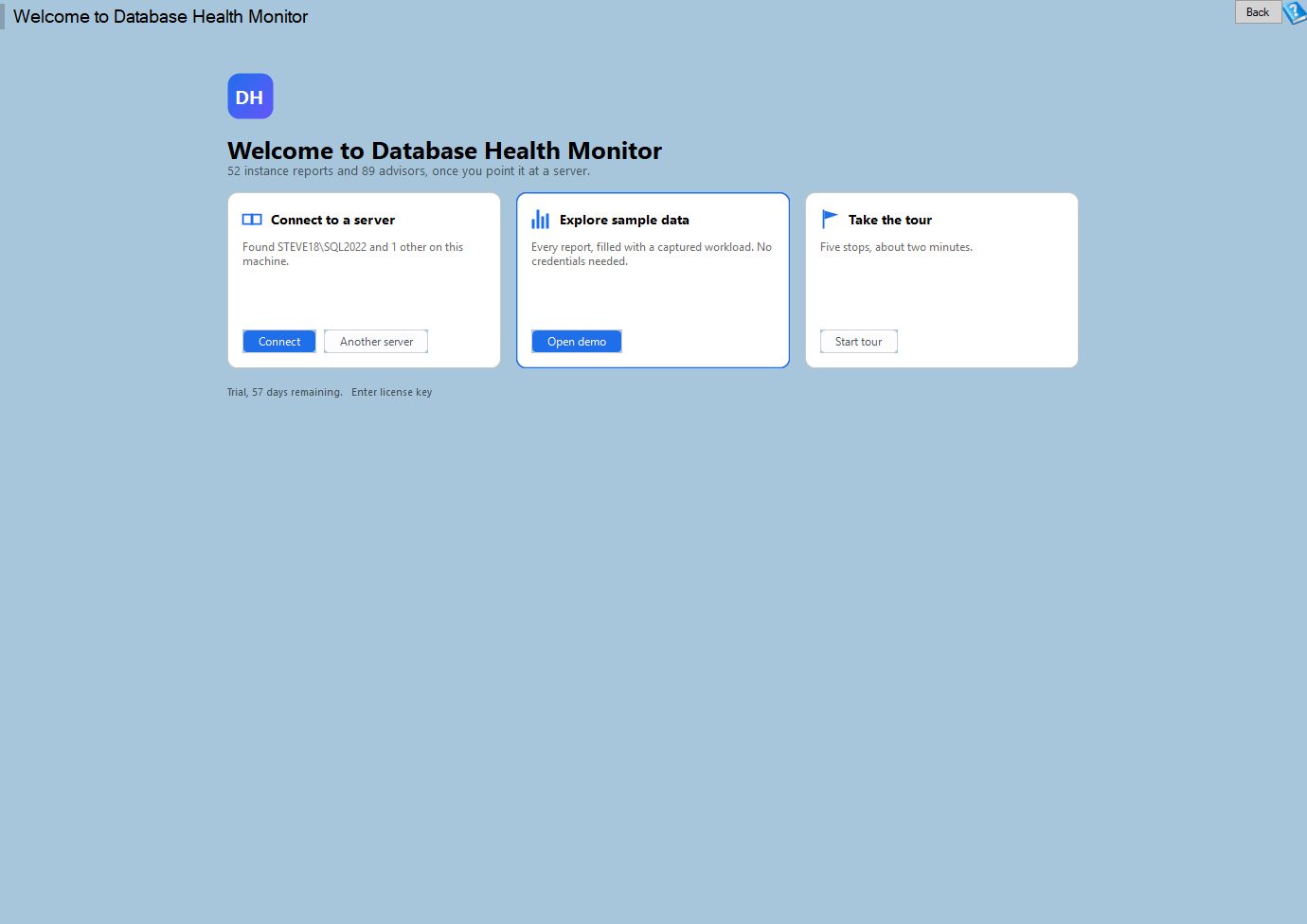
Welcome to Database Health Monitor is one of the reports in Database Health Monitor. It runs against your own servers, and it takes about a minute to have this same screen open on one of them.
Sample data is a recording, not a mock-up
The first misreading is that a demo must be fake. This one is not. The dataset is a capture taken from a real SQL Server that exists for the purpose, running a generated workload. It is not a customer's data, and it is not synthetic.
Reports open, grids sort and filter, charts draw, and export works. Reports that sit behind a license on your own installation open too. What you do not get is anything that writes. Writes are refused rather than faked, so you never see a button pretend to have changed a server.
The capture is old, and the product knows it. Dates are moved forward by a whole number of hours, so a recording made weeks ago reads as the last few hours and days. Whole hours matter: the hourly patterns in the heat map reports stay intact.
It also stays out of the way of real work. The sample instance joins the tree as (demo). Anything already connected keeps talking to its real server, because the choice is made per connection. Nothing is written to your settings file, so closing the application, or crashing it, leaves nothing to clean up. Start it with Open demo or Help, Explore Sample Data. Leave with Help, Leave Sample Data.
An empty report is not a broken one
Second misreading: you open Blocking in sample data, see nothing, and decide the product is half finished. Think about what was recorded. The capture is one moment. Nothing was blocked on that server at that instant, so the report has nothing to show. Reports whose queries were never captured are empty for the same reason.
A different failure looks worse and is easier. If the dataset file is missing from the install, you get a message naming DemoCapture.zip and the places it was looked for, not an empty product. Put a copy in your Documents folder and it works. That copy is preferred over the installed one, so a newer dataset can be dropped in without reinstalling.
The connect card reports what is installed, not what runs
Third misreading, and the one that costs real time. The connect card reads the Windows registry, in both the 64 bit and 32 bit views, and offers what it finds on the machine it is running on. It ranks by release, newest first, and puts the default instance ahead of a named one when releases tie. If the registry finds nothing, a network scan runs as a fallback. It needs the SQL Server Browser service, can take a few seconds, and keeps only local instances.
So Found MACHINE\SQL2022 on this machine means installed. It does not mean started. A stopped instance is still offered, and the connect dialog then reports the real failure. Checking service state would need a Windows permission the product does not otherwise ask for, and the answer could be stale by the time you clicked.
The opposite message misleads just as easily. No SQL Server found on this machine says nothing about your network. An instance on another server is not found by design. Choose Another server and type the name.
Connect opens the ordinary dialog with the name already filled in rather than connecting silently. Windows authentication is the usual answer on a local machine, not the only one, and a dialog that is already correct beats a silent failure. Servers you used before are listed first, most recent on top. Only the name is remembered, never the connection string, since that can carry a password.
The tour does not run where you expect
You might wait on the Welcome Page for the tour to start. It will not. It runs once, after your first server connects, because a tour of an empty window has nothing to point at. It has five stops: the tree, the menus, the help strip, getting back with F5 to re-run a report, and where to start.
The highlighted control still works while the rest dims, so you can click the tree mid-tour. Skip tour, Escape or a click on the dimmed area ends it for good. Help, Guided Tour runs it again whenever you like. The full reference is in the Welcome to Database Health Monitor documentation.
What to check on your own server
- Open Help, Explore Sample Data and run a few reports before connecting anything
- Read the wording on the connect card before deciding whether a scan found your instance
- Choose Another server and type the name for any instance that lives on a different machine
- Read the failure the connect dialog reports when an offered instance will not connect
- Run Help, Guided Tour after your first server connects
Try Database Health Monitor Today
The first ten minutes with a new monitoring tool go to hunting for a server name and a connection string, and the Welcome Page removes both. Database Health Monitor shows it on every instance you connect, in the time it takes to open the report.
Download Database Health Monitor and run the Welcome to Database Health Monitor report against your own server. There is nothing to configure first, and you will know inside a few minutes whether it tells you something you did not already know.