How to Check Table Sizes in SQL Server Using T-SQL and Tools

Managing table sizes in SQL Server is an essential task for any database administrator looking to maintain optimal performance and efficient storage usage. Large or rapidly growing tables can lead to slower queries, increased backup times, and potential bottlenecks. In this post, we’ll explore practical methods to check table sizes using T-SQL scripts and introduce helpful tools to simplify the process.
Knowing the size of your tables isn’t just about keeping track of storage; it’s about making informed decisions to enhance database health. By identifying which tables consume the most space, you can prioritize optimization efforts like indexing, partitioning, or even archiving old data. This proactive approach helps prevent performance degradation before it impacts your applications or users.
Whether you’re a seasoned DBA or just getting started, understanding how to analyze table sizes is a valuable skill. We’ll walk through a step-by-step T-SQL query to calculate table sizes, breaking down data, index, and unused space. Additionally, we’ll highlight a user-friendly alternative with the Database Health Monitor tool, which offers visual insights without the need for complex scripting.
How to Find Table Sizes in SQL Server with T-SQL
Understanding the size of your tables is a key part of SQL Server management. Whether you’re troubleshooting performance, optimizing storage, or planning for database growth, knowing how much space your tables use is critical. In this guide, we’ll show you how to find table sizes with T-SQL and discuss an alternative approach using the Database Health Monitor, which makes table size analysis easier and more efficient.
Why Table Sizes Matter
Large tables can impact performance, especially during queries, BACKUPs, and maintenance tasks. They can also contribute to excessive disk usage and slow down recovery in the event of a crash. Understanding table sizes helps you identify which tables consume the most resources, allowing you to make informed decisions about indexing, partitioning, or archiving.
By regularly reviewing table sizes, you can:
- Identify tables that are growing faster than expected.
- Plan for database and storage growth proactively.
- Improve performance by optimizing large tables.
Finding Table Sizes Using T-SQL
SQL Server doesn’t provide a built-in command to directly display table sizes, but you can calculate them using system views like sys.dm_db_partition_stats, sys.allocation_units, and sys.partitions. The following T-SQL query retrieves the size of each table in your database, including data size, index size, and unused space.
T-SQL Query to Get Table Sizes
SELECT t.name AS TableName, SUM(a.total_pages) * 8 AS TotalSpaceKB, SUM(a.used_pages) * 8 AS UsedSpaceKB, (SUM(a.total_pages) - SUM(a.used_pages)) * 8 AS UnusedSpaceKB, SUM(CASE WHEN p.index_id < 2 THEN a.used_pages ELSE 0 END) * 8 AS DataSpaceKB, SUM(CASE WHEN p.index_id >= 2 THEN a.used_pages ELSE 0 END) * 8 AS IndexSpaceKBFROM sys.tables tINNER JOIN sys.partitions p ON t.object_id = p.object_idINNER JOIN sys.allocation_units a ON p.partition_id = a.container_idGROUP BY t.nameORDER BY TotalSpaceKB DESC; 
What the Query Does
This query calculates:
- TotalSpaceKB: The total space allocated for each table, including data, indexes, and unused space.
- UsedSpaceKB: The space actively used by data and indexes.
- UnusedSpaceKB: The difference between the allocated space and the used space, representing room for growth.
- DataSpaceKB: The size of the table’s data, excluding indexes.
- IndexSpaceKB: The space used specifically for indexes on the table.
The query joins three key system views:
- sys.tables: Lists all user tables in the database.
- sys.partitions: Provides partition-level information, including index IDs.
- sys.allocation_units: Tracks page allocation for each partition, including total and used pages.
Using the Results
The results of this query provide a detailed breakdown of space usage for each table. Use it to identify:
- Large tables consuming excessive storage.
- Tables with significant unused space that might need optimization.
- Tables where index space is disproportionately large compared to data space.
Challenges with Using T-SQL for Table Sizes
While the T-SQL approach works, it has limitations:
- Complexity: The query relies on SQL Server’s internal system views, which can be daunting for new users.
- Time-Consuming: Interpreting the results requires manual effort, especially in databases with many tables.
- No Historical Context: The query provides a one-time snapshot but doesn’t track changes in table sizes over time.
- Limited Insights: It focuses on size alone and doesn’t offer insights into related performance issues or fragmentation.
An Easier Alternative: Database Health Monitor
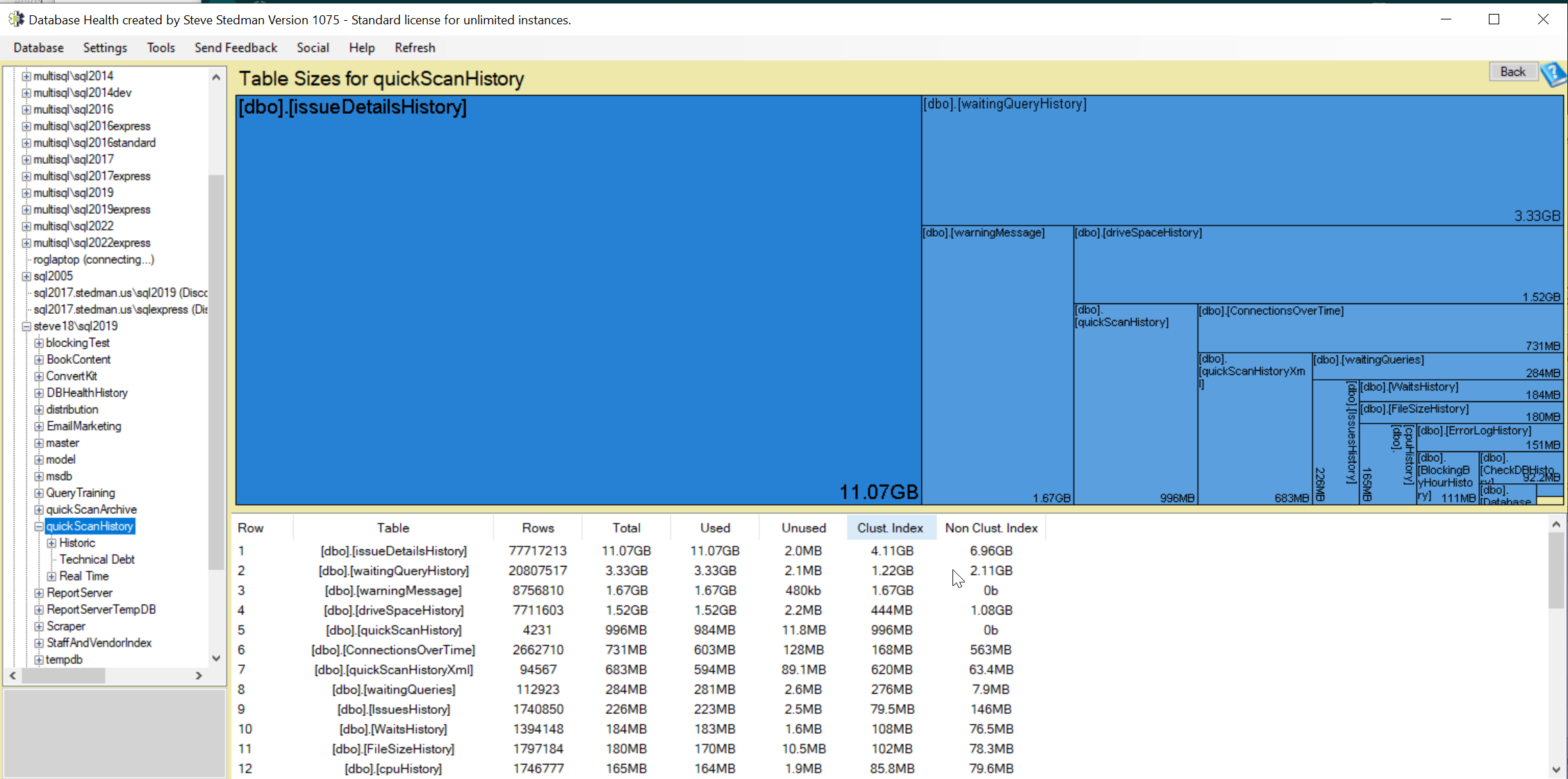
For a more user-friendly way to analyze table sizes, consider the Database Health Monitor. This free tool provides a graphical interface with a built-in Table Sizes Report that delivers deeper insights without the need for complex queries.
Advantages of the Table Sizes Report
- Visual Representation: See table sizes, index sizes, and unused space at a glance.
- Historical Tracking: Monitor how table sizes change over time to identify trends and plan for growth.
- Ease of Use: No need to write or run T-SQL queries; the tool does the work for you.
- Actionable Insights: Quickly spot fragmentation, skewed data distribution, and other performance-related issues.
- Exportable Reports: Generate and share reports with your team or stakeholders.
How to Use the Table Sizes Report
- Download and install Database Health Monitor.
- Connect it to your SQL Server instance.
- Navigate to the Table Sizes Report under the “Reports” section.
- View detailed information on table sizes, index fragmentation, and more.
Importance of Regular Table Size Monitoring
Monitoring table sizes is more than just a storage exercise. It’s a vital part of maintaining database health and performance. Regularly checking table sizes allows you to identify and address potential issues before they become critical. Whether you prefer T-SQL or a dedicated tool like Database Health Monitor, understanding table sizes is an essential skill for any database professional.
Need Help Managing Your SQL Server?
If managing table sizes and database performance feels overwhelming, let us help. At Stedman Solutions, we offer SQL Server Managed Services to monitor, optimize, and support your databases. Our Team of experts is here to ensure your environment runs smoothly and efficiently.
Contact Stedman Solutions for SQL Server Support today at Stedman Solutions or start using Database Health Monitor to gain insights into your SQL Server environment.
Summary for Table Sizes in SQL Server
- Importance of monitoring table sizes for database performance and storage efficiency.
- Impact of large tables on query speed, backups, and recovery times.
- T-SQL query method using system views like sys.tables and sys.partitions for size calculation.
- Breakdown of table space into data, index, and unused categories via T-SQL.
- Limitations of T-SQL including complexity and lack of historical data tracking.
- Alternative tool, Database Health Monitor, for visual and historical table size analysis.
- Benefits of regular table size monitoring for proactive database health management.