Database Health Monitor 4.1792: Smarter Exports, Server Recovery Pages, Themes and a New Password Policy Check

Database Health Monitor 4.1792 changes how you export a grid, what you see when a server will not connect, and how the application looks on your desktop. It adds a new Quick Scan security check for SQL logins that have the password policy turned off, and it fixes 527 tickets, 29 of them crash reports.
This post walks through every change in the release. Each section says what the change does, where to find it, and what to expect when you use it. If you only have a few minutes, the short version is in the list below.
- Export asks what the file contains when a selection, a filter, or several tables make the answer unclear, and the saved file records where it came from.
- Right click any grid cell to copy its value, show only rows with that value, or hide rows with that value.
- A recovery page replaces the bare “Server is Not Connected” message, and the server tree now badges servers that cannot be reached or that refused the login.
- A Theme menu with Light, Dark and Follow Windows.
- Accessible names and roles for the custom drawn 10x controls, plus a high contrast mode.
- Line charts with axes and hover values.
- A responsive Decryptionator that loads its module list and source in the background, with a Cancel button.
- A new Quick Scan check for SQL logins with CHECK_POLICY turned off.
Export asks what the file contains
Any grid in Database Health Monitor can be saved to CSV, Excel or HTML. Before this release the export saved whatever it found and left you to work out later what that was. A filtered grid produced a filtered file, a selection was ignored, and a page with three tables exported one of them without saying which.
The export now asks one question, and only when the answer is not obvious. With no selection, no filter and one table on the page there is nothing to ask, so the export goes straight to the Save dialog exactly as it did before. When any of those three things is true, a small dialog opens and asks what should the file contain?
| Choice | When it is offered | What it saves |
|---|---|---|
| Table | The page has more than one grid | The grid you pick. Two tables with the same name are numbered. |
| Selected rows | Some rows, but not all of them, are selected | Only those rows. |
| All rows shown | Always | Every row the grid is showing, so filters are respected. |
| Every row, including filtered | A filter is hiding rows | Every row the grid holds, with the filters ignored. |
An option that would produce the same rows as another is left out, so the dialog never shows two choices that mean the same thing.
The default is the safe answer
The dialog picks its default for you. If several rows are selected, the default is the selected rows. If one row is selected, or none, the default is All rows shown. A single selected row is usually just where the last click landed, not a request for a one row file, so the dialog does not treat it as one. The dialog follows the dark theme, works from the keyboard with Tab, the arrow keys, Enter and Esc, and starts fresh every time. Nothing the previous export chose carries over.
A file that explains itself
The other half of this change is the record of where the file came from. A check box at the bottom of the dialog adds it, and it is on by default for Excel and HTML and off by default for CSV.
| Format | What the check box adds |
|---|---|
| Excel | An About sheet, placed second so the workbook still opens on the data. |
| HTML | The scope and the filters under the page heading. |
| CSV | A separate file beside it named name (details).txt. A CSV has no room for a header row without breaking the programs that read it, so the details never go inside it. |
The About sheet and the details file carry the same items: the report the grid came from, the table name for a page with several, the server and database, the time the file was written in both local time and UTC, the number of rows exported, the scope in words, one line for each column filter that was active, any text in the find bar, and the version of the application that wrote the file.
The scope line is written in plain language, for example “Selected rows (3 of 412 shown)” or “All rows shown (412)”. That matters more than it sounds. A filtered export attached to a ticket is only useful if the person reading it can tell that it was filtered. Six months from now, “why does this file have 80 rows when the report has 412?” has an answer inside the file itself.
The toast says what was saved
When the save finishes, a message tells you what happened, using the same words as the scope. You will see “Saved 3 selected rows of 412 to file“, or “Saved 80 rows (filtered from 412) to file“, or “Saved 412 rows (including those hidden by filters) to file“. On a page with several tables the message also names the table that was exported. Click the message to open the folder with the file selected. The Save dialog remembers the last folder you used.
One safety detail is worth knowing about. Cells that begin like a spreadsheet formula are written to Excel as text, so a value that came from a server can never execute when someone opens the file.
You can export from either of two places. Right click a grid and choose Save as CSV, Save as Excel or Save as HTML for that grid, or use the Export This Page entries on the main menu, which find the grids on the open page. The full description is in the help topic Exporting a Grid.
Right click a cell to filter by it
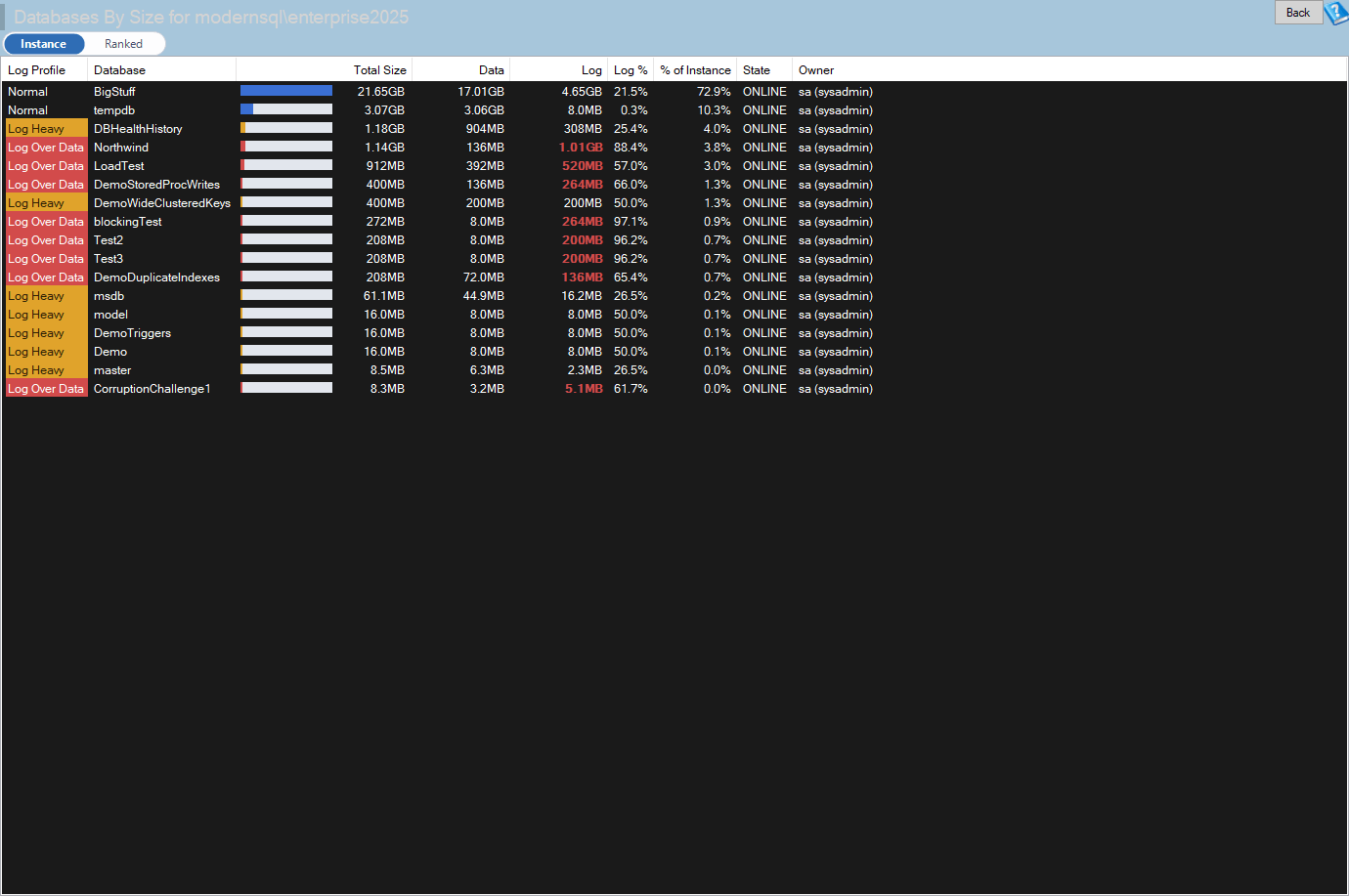
Filtering a grid used to mean opening the filter on a column header, finding the value in a list, and ticking it. That is the right tool when you want several values. It is slow when what you want is “show me everything that looks like this row”.
The grid menu now has three entries for the cell you right clicked:
- Copy puts the displayed value on the clipboard. If the cell shows “45 GB”, that is what you get.
- Show only keeps just the rows where that column has that value.
- Hide removes the rows where that column has that value.
Show only and Hide set the column filter directly, without opening the filter dialog. They work on the underlying value of the cell rather than the formatted text, which is why a cell that displays “45 GB” still filters correctly against the number stored behind it. After the filter is applied, a message tells you how many rows are showing, for example “Showing 18 of 412 rows where Status = Failed”, and reminds you that Reset Filters undoes it.
Because these entries use the same column filter as the header dialog, everything built on that filter keeps working. The filter shows in the column header, you can add a second one on another column, and the export dialog described above knows about it. A typical sequence is to right click a failing status and choose Show only, right click a database name and choose Hide to drop the one you already know about, and then export what is left with the scope recorded in the file.
When a server will not connect
Two changes in this release deal with the same problem from different ends. One is what you see when you open a report on a server that is not answering. The other is what the server tree tells you before you open anything.
A recovery page instead of a dead end
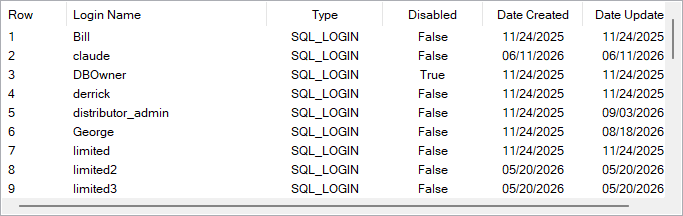
Previously, a report on an instance that failed to connect showed a page that said “No results found. Server is Not Connected” and nothing else. The reason for the failure was already stored, and the actions that could fix it already existed in the tree menu, but you had to know to go and look for them.
The new page is built to answer the questions you ask in the first ten seconds:
- Which server? The page names it.
- What did the driver say? The driver’s own message is shown as it was received.
- What is the likely cause? A plain English explanation sits next to the message, so a certificate trust error or a refused login does not need to be decoded first.
- What can I do? Four buttons: Try again, Edit connection, Copy error and Help.
Try again connects to that one instance in the background, so the window stays responsive while it works. If the connection succeeds, the report you originally asked for loads automatically. You do not have to navigate back to it. If it fails again, the page redraws with the new result and shows when it was last tried. Edit connection opens the saved connection for that server, and Copy error puts the complete message on the clipboard so it can go into an email or a ticket.
An instance that is still connecting no longer looks like a failure. While the tree node shows “(connecting…)” the page reads “Connecting to” followed by the server name, the actions are disabled, and the explanatory text does not claim anything has gone wrong. That avoids the common experience of reading an error that is gone by the time you finish reading it.
The page is built in code from system colors, so it follows the light and dark themes, and it is sized from the font, so it scales at 150 percent display scaling.
Badges in the server tree
A server that cannot be reached, or that refused the login, now gets a badge in the tree. Hover over it and the tooltip explains the state and, if the server has answered earlier in the session, when it was last seen working. A server nobody has touched looks exactly as it always did, and so does one that is healthy.
The state is learned passively. Nothing runs a query to find it. When a report load or the startup connect fails with a connection or login error, the server is marked. When one completes, the mark is cleared. That means the tree never adds load to a server you already cannot reach, and it never marks a server because of an unrelated problem. Pressure errors such as timeouts, memory and deadlocks are deliberately not recorded, because in those cases the server answered. It was just busy.
The tree menu also gains Retest connection. It tries the server again, reports the result, and updates the badge, so after you fix a firewall rule or reset a password you can confirm it from the tree without opening a report.
A Theme menu with Follow Windows
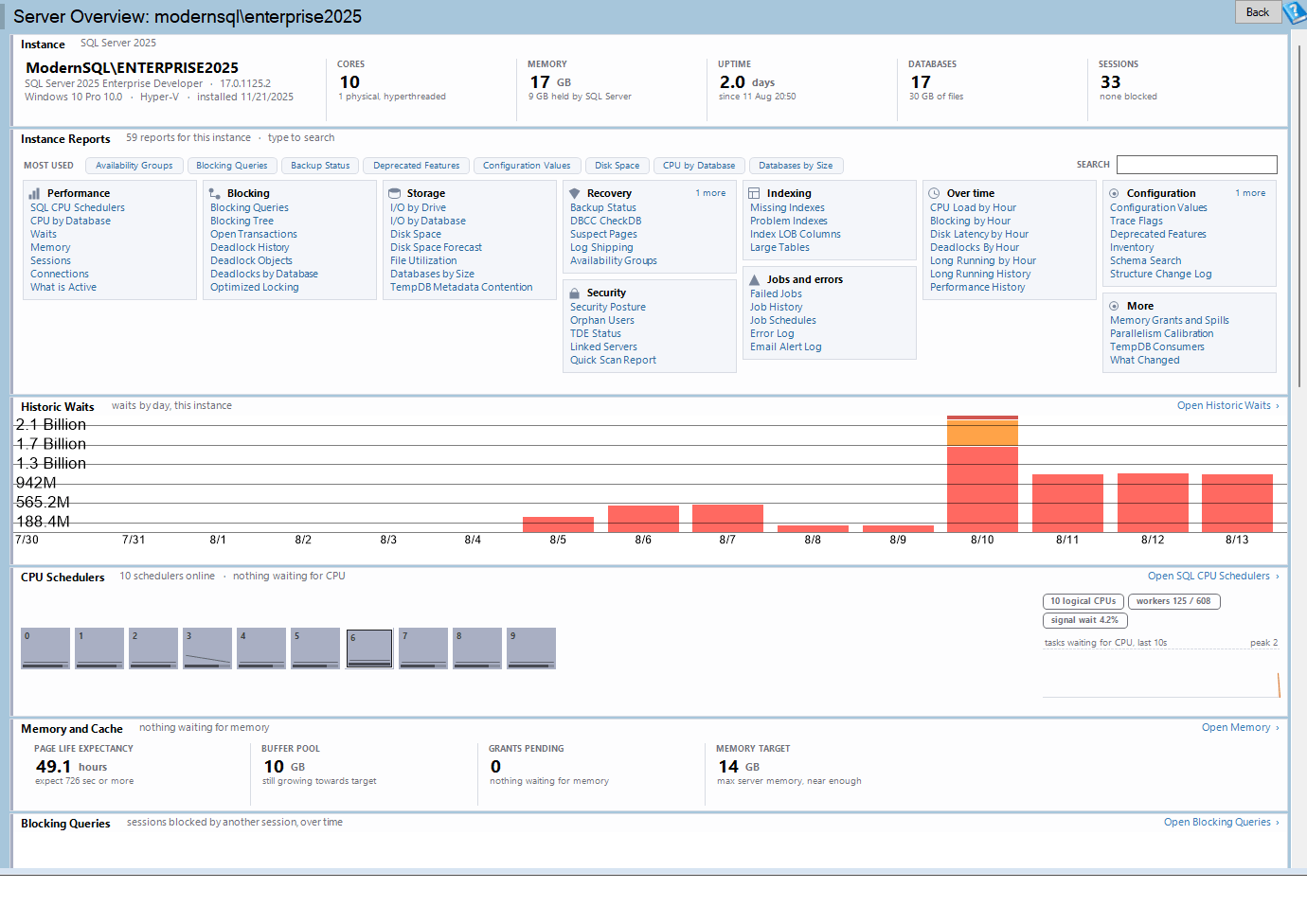
Dark mode has been available for some time, but it was a single on or off setting. The new Display > Theme submenu offers three choices:
- Light
- Dark
- Follow Windows
Follow Windows reads the app mode setting in Windows and applies it. It also reacts while the application is running. If Windows switches to dark in the evening, Database Health Monitor switches with it, and it switches back in the morning. The change is debounced by half a second and the application reloads only when the resolved answer actually changes, so a burst of settings notifications does not cause a flicker of redraws. If the Windows setting cannot be read, the application falls back to light.
An existing dark mode setting is carried over, so nobody wakes up to a different theme than the one they chose. The resolved value is still written in the form older settings expect, which means going back and forth between builds does not lose the preference.
Accessible names for the 10x controls
The 10x interface draws many of its controls itself. That gives it a consistent look and fast rendering, but it also means the operating system does not know what those controls are unless the application says so. A custom drawn chart is, to a screen reader, an unlabeled rectangle.
This release fills that in:
- Charts now report the role of a chart, use the chart title as their name, expose a headline description, and expose a child for each value, up to 50.
- Report cards report whether they are expanded or collapsed.
- The estate board reports which card has focus, in words.
- The navigation tree, the grid, the filter boxes, the range picker, the find bar and the page rail all have names.
There is also a guard against regressions. The 10x self check now fails if any focusable control has no accessible name, so a control added in a future release cannot slip through without one.
When Windows is in a high contrast mode, the 10x interface now selects a system color theme rather than its own palette, so the colors that you chose in Windows are the colors you see.
Line charts with axes and hover values
The line chart used across the application now draws labeled axes, shows the value under the mouse when you hover, uses the colors of the active theme, and copes with long values. Before this change a line chart showed a shape, and you read the numbers from somewhere else. Now the number is in the chart.
This matters most on the reports that show a trend over time, where the question is rarely “is the line going up” and almost always “what was the value at 3 AM on Tuesday.” Hover over the point and the chart answers it. Long values no longer run into the edge of the plot.
A Decryptionator that stays responsive
Decryptionator reads encrypted stored procedures, functions, views and triggers over the dedicated administrator connection. That connection is single threaded, so everything it does has to happen one module at a time. Until now the window waited while that happened.
In this release, loading the module list and View / Decrypt Source both run in the background:
- The window stays live while the server works, and the first rows of a list can be read as they arrive.
- Progress is shown, and the button becomes Cancel while several modules are being read.
- Decrypted modules are added to the end of the pane as they finish. The pane jumps to the top once, for the first module, and after that stays where you scrolled to. Line numbers are rebuilt a few times per second rather than once per module, so a long run of quick modules does not slow the window down.
- Closing the window during a load stops the work cleanly and releases the dedicated administrator connection, rather than leaving it held.
- Connect and Refresh are disabled while a load, a view or a capture runs, so a second click cannot clear the list underneath the first.
If you use the Script to Folder option, this release also changes how file names are written. Characters that are not valid in a file name are encoded as a percent sign and two hex digits, and a literal percent sign is written as %25, which matches the way Schema Drift decodes names when it reads the folder back.
A new Quick Scan check: SQL logins with the password policy turned off
Quick Scan is the report that checks an instance against a long list of known problems and ranks what it finds. This release splits one of its security checks in two.
The existing SQL logins with blank passwords check is unchanged in purpose. It tests each enabled SQL login with PWDCOMPARE, which compares a candidate password against the stored hash without needing to know the password. It looks for a blank password and for a password that matches the login name, which are the first two guesses any automated attack makes. It no longer also reports logins on the strength of their policy setting.
That second concern is now its own check, SQL logins with the password policy turned off. It finds enabled SQL logins in sys.sql_logins that have a password hash, are not an internal ## certificate based principal, and have is_policy_checked set to 0. In other words, logins where CHECK_POLICY was disabled.
Why a policy off login is worth its own finding
With the policy off, three protections are gone:
- The password never had to meet the Windows complexity rules, so it can be anything at all.
- The password never expires. A credential set during an installation years ago is still valid today.
- The account does not lock out after repeated failed attempts. An attacker can keep guessing with no rate limit, and if login auditing is also off, with no record.
The last combination is the one to worry about. Policy off plus auditing off describes an account that can be attacked forever and silently. These logins are rarely created by people. They come from vendor installation scripts that needed a SQL login, found that the policy prompted for a change, and turned it off to get past the installer. Nobody remembers them, which is why they survive security reviews.
Separating the two checks lets each be fixed on its own schedule. A login can have a perfectly good password and no policy, or a blank password under a policy that was never enforced. The remedies differ. A blank password needs a new password and a search for the configuration file that holds the old one. A policy off login needs the policy turned on, and a decision about expiry.
Confirm it yourself
The check is a plain query, so you can see exactly what it sees:
SELECT l.[name],
       l.[is_disabled],
       l.[is_policy_checked],
       l.[is_expiration_checked],
       l.[create_date],
       l.[modify_date]
  FROM sys.sql_logins AS l WITH (NOLOCK)
 WHERE l.[is_disabled] = 0
   AND l.[password_hash] IS NOT NULL
   AND l.[name] NOT LIKE '##%'
   AND l.[is_policy_checked] = 0
 ORDER BY l.[name];
Before changing anything, find out what each of those logins can reach. A policy off login that is also a member of sysadmin is the one to deal with first.
Fixing it without breaking the application
Do not start by changing passwords. A login created by a vendor installer has its password in a configuration file somewhere, and changing the password without finding that file takes the application down. In order:
- Find out whether the login is used at all. Look at
sys.dm_exec_sessionsover several days, or at the login records if auditing is on. Many of these logins belong to software that was uninstalled years ago. - Disable the unused ones rather than dropping them, so the change can be reversed:
ALTER LOGIN [name] DISABLE; - For logins in use, turn the policy on. Switching it on also turns on expiry checking unless you say otherwise, so be explicit:
ALTER LOGIN [TheLogin] WITH CHECK_POLICY = ON, CHECK_EXPIRATION = OFF;CHECK_POLICY = ON does not retroactively validate the existing password. Find the application configuration first, then change the password and the policy together.
- Reduce what the account can do. A vendor login that is a sysadmin because the installer asked for it is worth revisiting whatever its policy setting is.
Plan on about an hour for the whole exercise, most of it spent establishing what uses each login before touching it. If a vendor forbids turning the policy on, the compensating control is at the network level: restrict which hosts can reach the instance, and make sure failed login auditing is on so the attempts are at least recorded. Disabled logins are not reported, because a disabled login cannot authenticate. The check will report one the moment somebody enables it.

The help topic for the check, SQL logins with the password policy turned off, includes the queries above, the related reports (Logins, Security Posture and Sessions), and the neighboring checks for blank passwords, failed login auditing and applications that connect as sa.
527 fixes
Most of this release is fixes. In total 527 tickets were resolved, including 29 crash reports and 188 fixes in Azure SQL Health Monitor. The categories are worth describing, because they say where the weight of the work went.
Quick Scan checks that got more accurate
More than thirty fixes went into Quick Scan checks. The common thread is that a check returned a wrong or incomplete answer on a configuration it had not been tested against. Examples:
- SQL Server 2005 to 2008 R2. The availability group joins were removed from several checks and replaced with a test of the database updateability property, so those checks bind on versions that predate availability groups. Check 60, default backup compression, now runs on SQL Server 2008 and 2008 R2 with the same edition test as the related check.
- Availability groups. Checks 18 and 28 skip databases for which the current replica is not the preferred backup replica, so a backup taken on another replica no longer shows as missing.
- Case sensitive instances. The error log exclusions in check 2 are now case insensitive, so failed login messages that differ only in case no longer flood the finding.
- Unicode and inaccessible databases. File growth staging uses Unicode literals, and several checks wrap each database in its own error handling and skip databases the login cannot access, so one unreadable database no longer blanks the whole result. Several loops that used the undocumented
sp_MSforeachdbwere replaced with a cursor that quotes each name. - Thresholds that did not match their descriptions. Check 41 now counts real backup set rows against the 100,000 stated in its description, and check 103 ignores the engine default and system databases.
- The calendar. Check 86 now flags SQL Server 2016, whose extended support ended on July 14, 2026, check 10 gained a SQL Server 2025 branch, and the table of latest known builds was refreshed for SQL Server 2017, 2019, 2022 and 2025.
- Web Edition. Check 8 is skipped on Web Edition, which cannot compress backups.
The history database
The history database receives its fixes through numbered upgrade steps. This release adds steps through version 1791, which redeploy corrected procedures to databases that were already upgraded. Without them, a fix to a stored procedure would reach only new installations. Among the crash reports resolved are a dozen from history databases that failed to upgrade from version 1494 to 1495. Name columns in the file history table are now Unicode, so databases and files with non English names get size samples. Deleting an email alert or a custom T-SQL alert now also removes the rows that tracked its mail history. Blocking chains with a negative blocking session id are now recorded, and no false “Blocking Cleared” message is sent for them.
Reports and scripts that were wrong in small ways
- Index rebuild scripts now restate
FILLFACTOR,PAD_INDEX,IGNORE_DUP_KEY, lock options and sequential key options, so a rebuild withDROP_EXISTINGno longer resets them to defaults. - Storage reports count a table’s writes from its base structure only, so writes are not multiplied by the number of indexes.
- Compression is derived from the numeric level, and a table with mixed compression across partitions is flagged as partial.
- The foreign key report proposes index names that avoid existing index and statistics names, and names already proposed in the same script.
- Alert emails for an unreachable instance and for the all clear format their timestamps with the invariant culture, so they read the same on every machine.
- The tray command to open the Manage dialog now signals the running instance rather than reporting that one is already running.
The unattended report generator
The silent report generator, which runs from a scheduled task, had the largest group of correctness fixes in one place. Its Backup Status reports now generate the table rather than a placeholder, File Utilization, Missing Indexes and Statistics run in the requested database rather than in master, file names built from an instance name no longer break on a colon or a slash, and its CPU by database queries read the database from the plan attributes so ad hoc and prepared statements are counted.
One fix there is a security fix. The generator printed part of each saved connection string to its console log, and a SQL authentication entry has the login and the start of the password well inside the characters that were printed. A scheduled task whose output is redirected to a file therefore wrote a credential into a log file in clear text. The generator now logs the server name only.
Azure SQL Health Monitor
188 of the fixes are in Azure SQL Health Monitor, mostly wrong or misleading results in reports. One license covers both products, so these fixes arrive alongside the ones above.
How the pieces work together
The changes in this release are small individually, and they are designed to be used in sequence. Here is one way a morning check can go.
You open Database Health Monitor and see a badge on one server in the tree. The tooltip says the login failed, and that the server was last seen working at 06:40. You open a report on it anyway, and instead of an empty page you get the recovery page, with the driver message and a likely cause. The message points at an expired password. You use Edit connection to enter the new one and Try again. The connection succeeds, and the report you originally clicked loads without any further navigation.
With the server back, you open a grid of the busiest queries. Most of the rows belong to a database you already know about, so you right click one of its cells and choose Hide. Then you right click a status and choose Show only. The grid now holds the handful of rows that matter, and the message under the toolbar says how many rows are showing out of how many.
You select three of those rows and choose Save as Excel. The dialog opens, because a selection and a filter are both in play, and it defaults to the selected rows. You leave the details box ticked. The workbook opens on the data, and the second sheet, About, says which report, which server, when it was exported, that three of the rows shown were selected, and which column filters were active. You attach it to a ticket, and nobody has to ask you how it was produced.
None of those steps is new on its own. A recovery action, a filter and an export all existed. What changed is that the application now carries the context between them: the reason for the failure is on the screen where you need it, the filter is a click instead of a dialog, and the file remembers its own history.
Common questions
Do I have to do anything to get the new Quick Scan check? No. It runs with the rest of Quick Scan. Check your findings after the upgrade and you will see logins with the policy off listed separately from logins with weak passwords.
Will the tree badge a server because a report timed out? No. A timeout, a memory error or a deadlock means the server answered, so those never mark a server as unreachable.
Does Follow Windows change anything outside Database Health Monitor? No. It only reads the Windows app mode. It never changes it.
Why does the CSV export write a second file? A CSV has no place for a header without breaking the programs that read it, so the details go into a separate text file next to it. Leave the box unticked if you only want the rows.
Does hiding a value change the data? No. Show only and Hide are column filters on what the grid displays. Reset Filters brings every row back, and nothing is deleted from the server or from the history database.
What to do after you install
- Open a report on a server you know is down to see the recovery page, then use Try again once the server is back.
- Switch the theme to Follow Windows if you want the application to match the rest of your desktop.
- Run Quick Scan on each instance and look for the new password policy finding. If it lists vendor logins, work through the fix steps above before you change anything.
- Export something with a filter on it and open the About sheet or the details file, so you know what the people who receive your exports will see.
- Let the history database upgrade finish. The new upgrade steps bring a history database that was already upgraded up to date, so check that its version reaches 1791.
Where to read more
The help pages for this release include Exporting a Grid, Quick Scan, SQL logins with the password policy turned off and SQL logins with blank passwords. The help is installed with the product and opens offline with F1, and it is also on this site.
Try Database Health Monitor Today
The new Quick Scan check lists every SQL login with the password policy turned off, with the query behind it and the steps to fix each one safely. Database Health Monitor shows it on every instance you connect, in the time it takes to open the report.
Download Database Health Monitor and run the Quick Scan report against your own server. There is nothing to configure first, and you will know inside a few minutes whether it tells you something you did not already know.