Database Health Monitor 4.1796: 28 New Reports for Finding the Queries That Cost You
Database Health Monitor version 4.1796 is the biggest query tuning release we have shipped. It adds 28 new reports, a shared window called the Query Card that gathers everything known about a statement in one place, a blocking alert that now fires while the blocking is happening, help pages for the tray application, and 649 fixes. If you have ever stared at a list of expensive queries and wondered what to do next, this release was built for that moment.
This post walks through everything in the release. It is long on purpose. Each new report gets a short explanation of the question it answers, because the best way to decide which reports matter to you is to read the question and see whether you have been asking it. If you only want the headline, skip to the section on the Query Card, then come back for the rest.
The theme: from “what is slow” to “why, and what do I do about it”
Database Health Monitor has always been good at the first half of a tuning conversation. It tells you which statements use the most CPU, which ones read the most pages, which sessions are blocking others, and which waits dominate the instance. Version 4.1796 is about the second half. Once you know a statement is expensive, you need to know whether its plan changed, whether its statistics are stale, whether the estimates can be trusted, whether the index behind it is doing its job, and whether the application is the real problem. Each of the 28 new reports takes one of those follow up questions and answers it with evidence from your own server.
The reports fall into four groups: query tuning, plans and statistics, indexes and storage, and locking, log and connections. Instance reports run from the instance node. Database reports run from a database node. Both are in the tree where you would expect them.
The Query Card
Before the individual reports, the feature that ties them together. The Query Card is one window that shows everything known about a single statement. It shows the statement text with the statement highlighted inside its module, so you see the line in context and not an orphaned fragment. It shows the plan summary, the minimum, average, maximum and last statistics, the compiled parameters, the Query Store history, and the findings that the other pages have made about the statement.
You open it with Ctrl+Q or from the right click menu. In this release it is wired to CPU by Query, I/O by Query, Waits by Query, Active Queries, Chatty Queries, Read Amplification, Long Running History, Query Store Regressions, the other Query Store pages and the Historic Waits query drill. That list matters, because the card is only useful if it is one keystroke away wherever you happen to notice the statement. The History section shows where the statement has appeared in the history database, and the Plan section shows the Plan Viewer grade.
There are three buttons worth knowing. Copy for a ticket puts a clean, readable summary on the clipboard, ready to paste into a work item without reformatting. Open in Query Advisor sends the statement on to the deeper analysis page. And the pinned mode makes the card follow the row you select in the grid behind it, so you can arrow down a list of statements and watch the card change. That last one turns a tuning review from a series of clicks into a scan.
New reports: query tuning
Top Queries Right Now
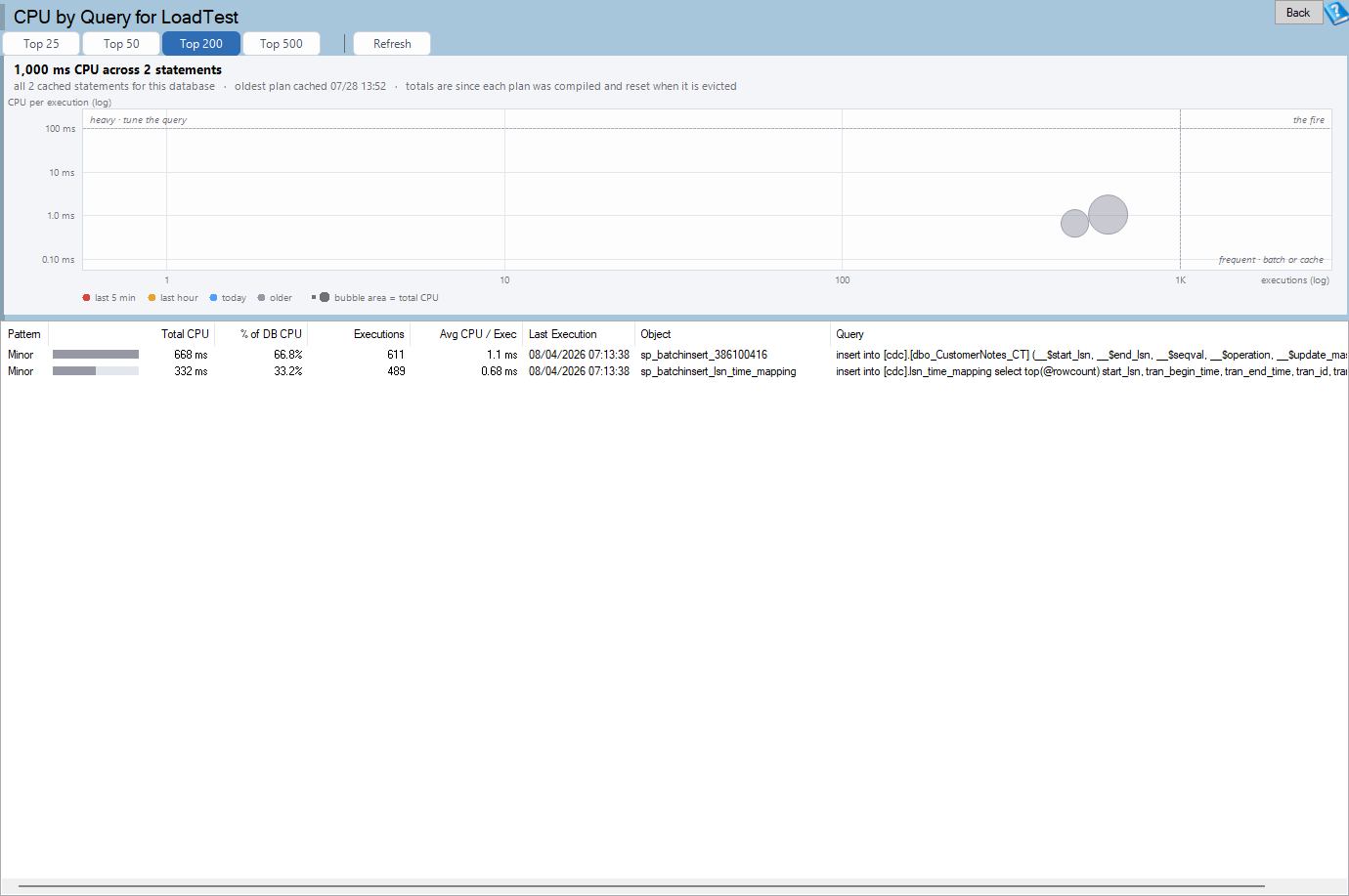
The plan cache is cumulative. A statement that ran a million times last month and not at all today still sits at the top of a ranking by total cost. Top Queries Right Now fixes that by taking two reads of the plan cache statistics a short time apart and ranking statements by what changed between them. It answers the question you ask during an incident: what is running right now that is costing this much? It is an instance report and it is the first page to open when someone says the server feels slow at this moment.
Query Anti-Patterns
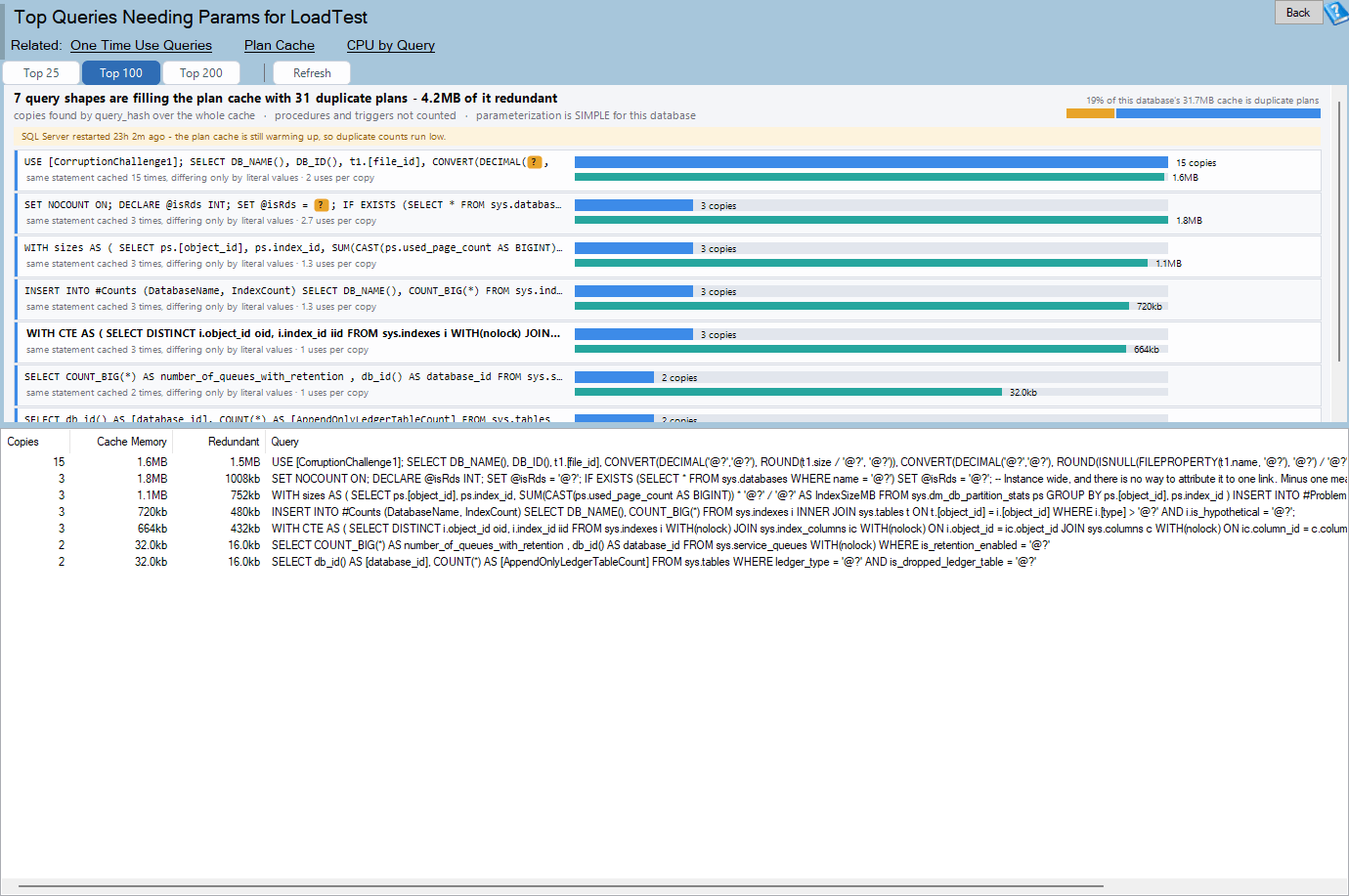
Some queries are expensive because of how they are written, and the fault is visible in the text. This database report looks through the costliest statements for the usual suspects: predicates that cannot use an index, SELECT *, NOLOCK hints, catch all parameter patterns and functions wrapped around columns. The findings are ranked by cost per day, so a sloppy statement that runs twice a week does not crowd out one that runs every second. The point of ranking by cost is to make the list a work queue and not a lecture.
Workload Text Search
Which statements touch this column? Which ones use this hint? Where is that comment tag we left in the code? Workload Text Search finds every table, column, hint, comment tag or literal in the plan cache and in every database’s Query Store, ranked by cost. It is the report to run before you drop a column, change a type or retire a table, because it tells you what is still using it. It also finds the odd literal that shows up in a thousand ad hoc statements.
Chatty Queries
A query that costs almost nothing per call can still be your biggest problem if it runs ten thousand times a minute. Chatty Queries plots executions per minute against cost per call, which is the map that finds N+1 patterns and round trip problems. Statements in the top right corner are expensive and frequent. Statements along the right edge are cheap and relentless. The second group is usually an application design problem, and this page is how you show the developers the evidence.
Compiled Parameter Values
Parameter sniffing is easy to name and hard to prove. This database report shows the parameter values each cached procedure plan was compiled for, compares them to the column histogram, and tells you how typical each value is. If a plan was built for a value that matches a handful of rows and most calls ask for a value that matches millions, you can see it, and the report points to the fix.
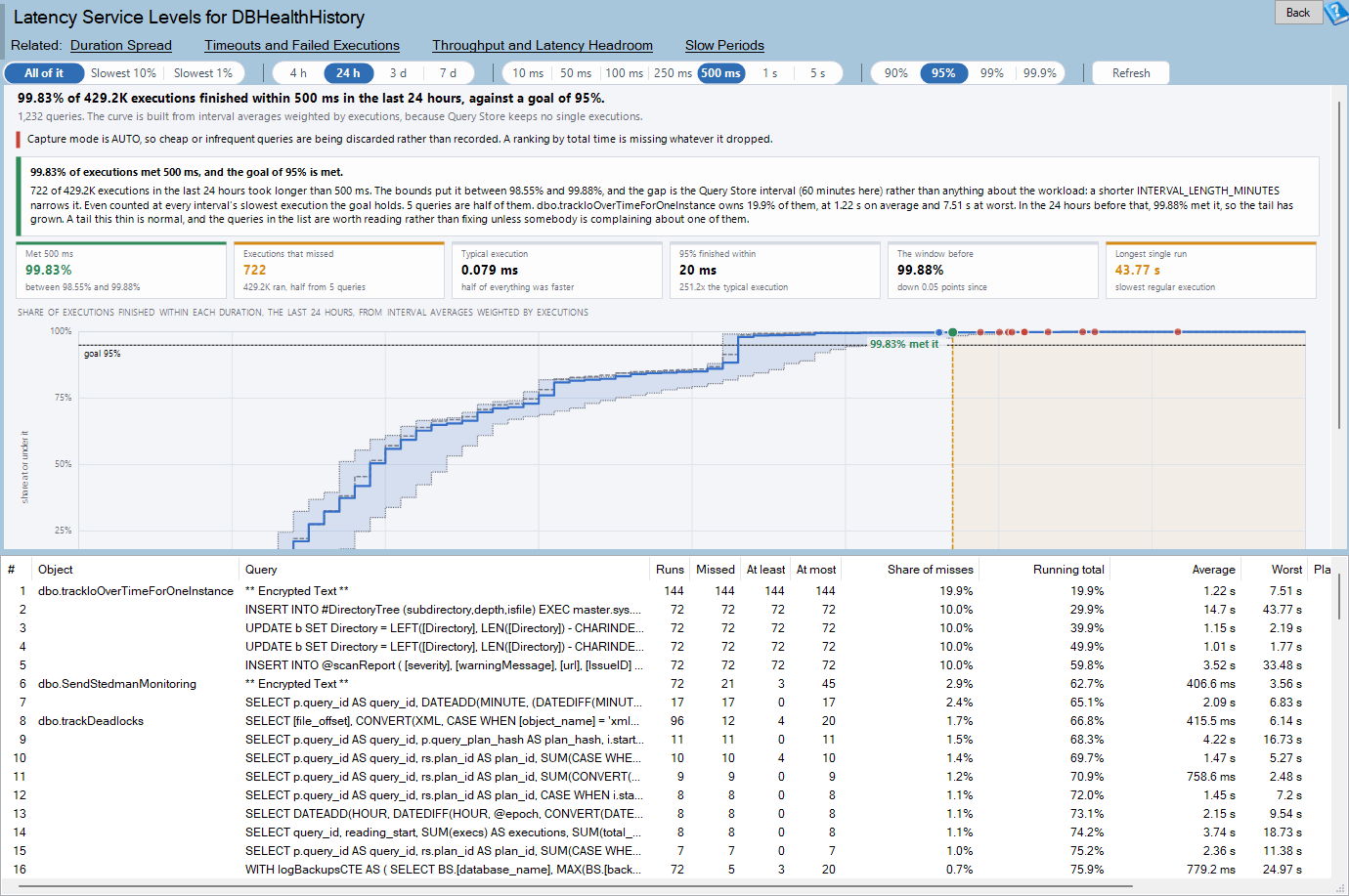
Query Timeouts and Client Aborts
When a client gives up on a statement, SQL Server records an attention event. This instance report captures those events with an Extended Events session and lists the statements clients abandoned, how long they usually run, and a verdict on whether the problem is the statement, the blocking around it or the client timeout setting. It finds the queries that users experience as failures even though the server never logged an error.
Result Set Size and Client Waits
Not every slow call is slow on the server. This database report shows rows and estimated bytes per call and separates two cases that look the same from the outside: a result so large that moving it takes time, and a client that reads slowly and holds the session open. It also lists sessions waiting on a client right now. Knowing which case you have saves you from tuning an index that was never the problem.
Live Query Progress
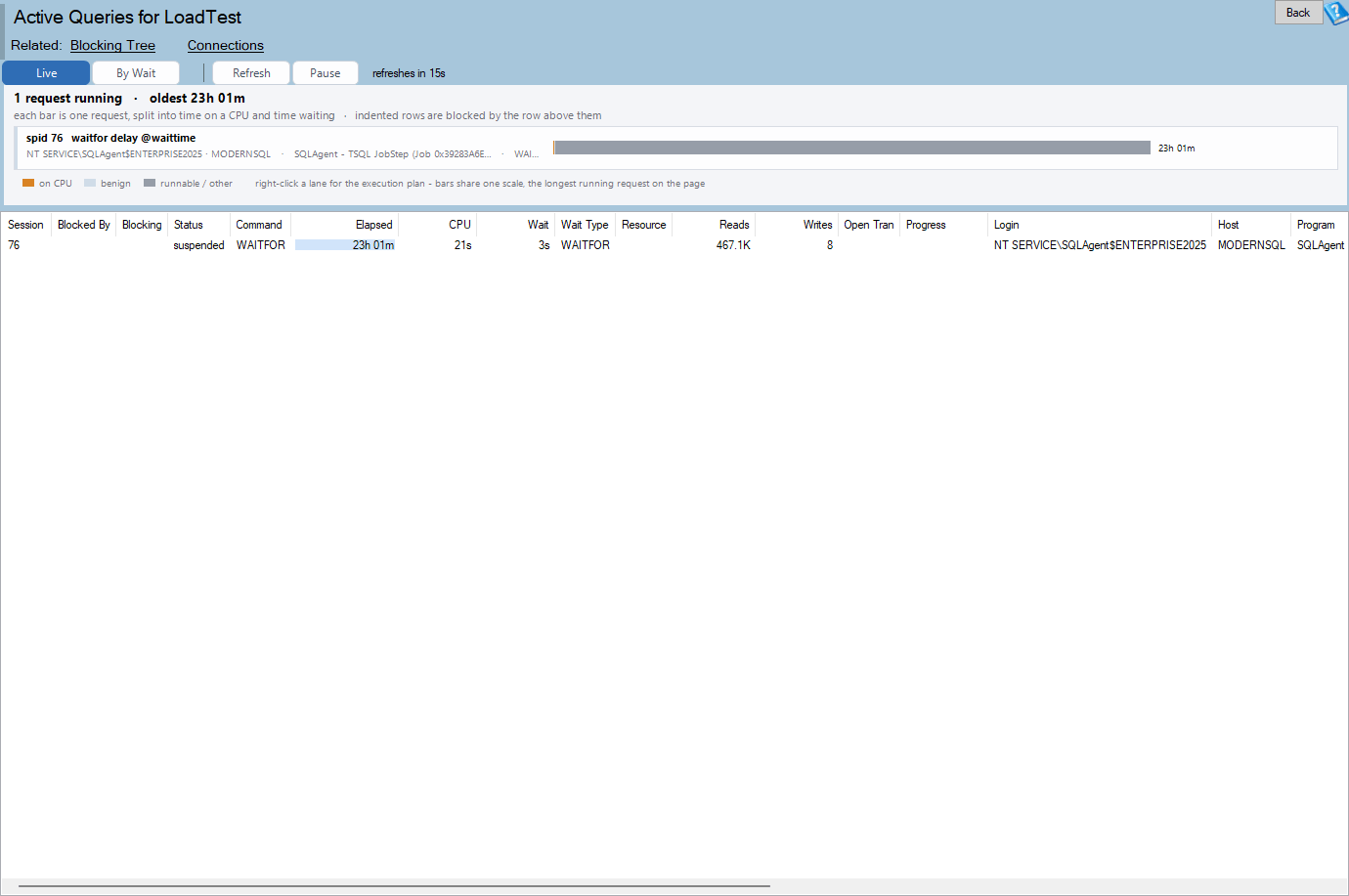
For a request that is running now, how close is it to done? Live Query Progress shows operator level progress for running requests, flags estimate overruns, and gives you a kill option when you decide the wait is not worth it. The estimate overrun view is the useful part, because it shows which operator is processing far more rows than the optimizer expected, which is usually where the plan went wrong.
Query Store Roll-up
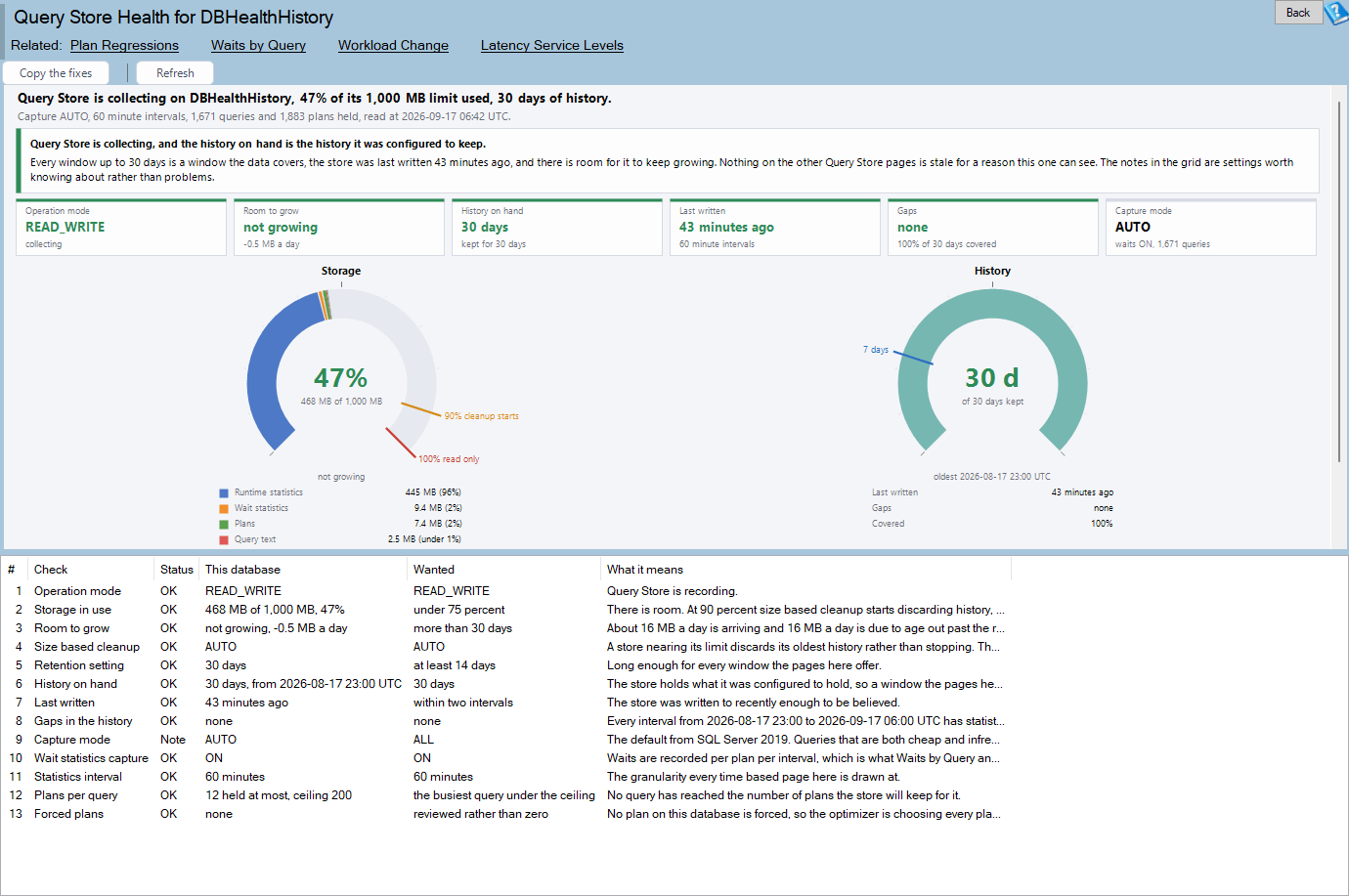
Query Store is per database, and most instances have several. The roll-up ranks the costliest statements across every database with Query Store for a window and metric you choose, and lists each database’s store state, size against its limit, capture mode, regressions and forced plan failures. A Query Store that is full or read only is a silent failure, and this is the page that shows it.
New reports: plans, statistics and estimates
Plan Change Timeline
A query ran fine last week and is slow today. Something changed, and the question is what. The Plan Change Timeline draws one query’s plans over time, with executions, average duration, compile marks and forced plan failures, and places beside them the events that commonly cause a plan to change: statistics updates, index and table changes, procedure alters, compatibility level changes and restarts. When a plan switch lines up with a statistics update, you have your suspect.
Estimate Accuracy by Operator
Bad plans nearly always start with a bad estimate. This report compares the last actual plan of the costliest cached statements operator by operator, finds the first operator where the estimate failed, and names the likely cause. It needs SQL Server 2019 or later, because it reads the last actual plan. Finding the first failing operator is the useful trick, since every estimate after it inherits the error.
Statistics Behind the Busiest Plans
Statistics maintenance is usually done by schedule, not by importance. This report ranks the statistics that the costliest plans were compiled against, shows their state then and now, and offers actions: update, update with FULLSCAN, or recompile dependents. It generates a script that performs the work in cost order, so the statistics that matter most are refreshed first.
Histogram Explorer
This database report shows statistics histograms per column. It highlights skewed values that make one plan wrong for everyone, and ascending key problems where new rows land beyond the last histogram step and the optimizer has no information about them. Seeing the histogram turns an abstract talk about skew into a picture.
Plan Operator Census
Where does the estimated plan cost go? The census totals it by operator kind, table and plan across the cache. If a third of your cost is sorts, or one table accounts for most of the scans, that tells you where indexing effort will pay.
Plan Settings by Database
Compatibility level, the cardinality estimator in force, database scoped configurations and plan cache evidence, shown per database with mismatches grouped. A database restored from an older server that still runs the legacy estimator is easy to miss, and this page makes it obvious.
Thread Skew
A parallel plan is only as fast as its busiest thread. Thread Skew finds parallel plans whose work landed on one thread, names the operator and the partitioning behind it, and shows what the skew costs. The fix is often a statistics or partitioning change, and the report shows the cause.
Remote Query Census
Linked server queries are a common hidden cost. This instance report finds cached plans that leave the instance and classifies how much of the work was pushed to the remote side: full, partial or none. It shows per row round trips and rows pulled, and offers a rewrite template for the worst cases.
New reports: indexes, tables and storage
Index Usage by Query
Index usage statistics tell you that an index is read. They do not tell you by whom. This database report shows which cached and Query Store plans use an index and how, and which statements made a missing index request, so you can judge the effect of changing or dropping it.
Read Amplification
How many pages does a query read for each row it returns? Read Amplification calculates that per query, shows the share that came from storage, names the probable cause and ranks indexes by efficiency. A query that reads fifty thousand pages to return ten rows is telling you something.
Table Tuning Advisor
Instead of ranking statements, rank tables. The Table Tuning Advisor orders tables by plan cost and gives each one a dossier: the statements that touch it, its indexes, missing index requests, waits, statistics, growth and which other tables are accessed with it. It is the right page when the question is what to do about a table.
Write Amplification by Table
One inserted row can cost far more than one write. Every nonclustered index, LOB column, trigger, key and history table adds work. This report measures what one written row costs each table, both structurally and from cached DML, so you can see which tables carry more index weight than their reads justify.
View Nesting
Views built on views built on views compile slowly and optimize poorly. View Nesting shows the depth, what sits beneath each view, the blockers inside, and what statements using them pay to compile.
Page Split Hot Spots
Page splits fragment indexes and flood the log. This instance report ranks indexes by page allocations, separates a random key from update growth, shows a live sampled rate, and recommends a fill factor or key change. The next section describes the precise measuring button added in this release.
Storage Latency Now
Lifetime averages hide today’s problem. Storage Latency Now samples read and write latency per file over a short window and compares it to the lifetime average. It shows pending I/O, the Resource Governor queue, the volume, and the requests and background writers that drove the I/O. It answers whether storage is slow right now, and who is causing it.
New reports: locking, log and connections
Lock Footprint and Escalation Watch
This report shows what each transaction holds locked now, by object and mode, and how close it is to the 5,000 lock escalation point. It shows what an escalation would cover, who is waiting and how much memory locks use. Knowing a transaction is near escalation lets you act before the table lock arrives.
Transaction Log Write Pressure
Flush rate and size, log write latency, the WRITELOG share of waits and who writes the log. When commits are slow, this page says whether the log device is the cause and which sessions generate the volume.
Connection Churn and Pooling Health
Logins per second, connection age, pool resets and the applications that are not pooling. It includes a guarded option to kill idle sessions. An application that opens and closes a connection for every call is wasting server time, and this page names it.
New features
Alert 5010 now alerts on active blocking
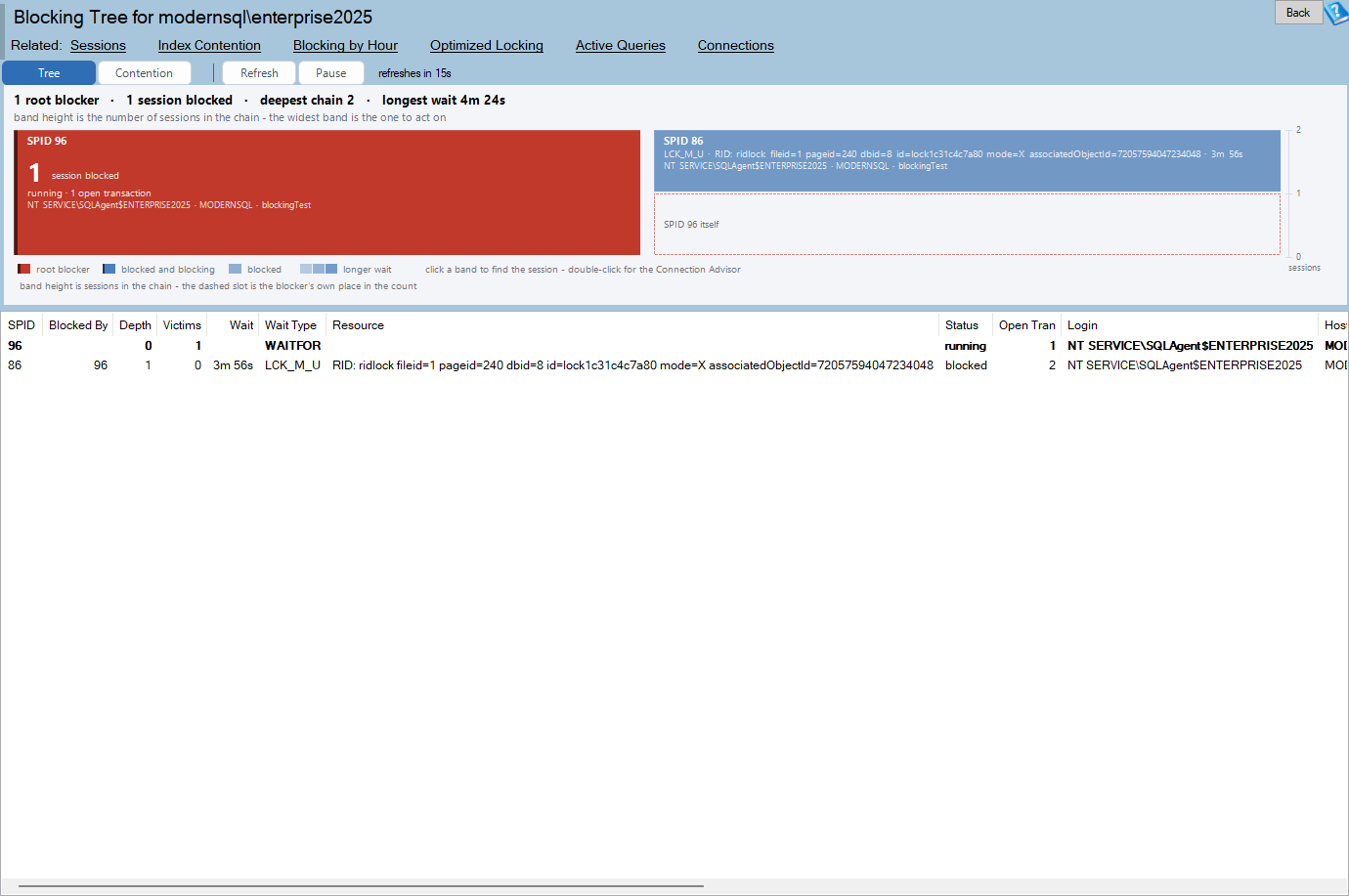
The blocking alert used to fire on historic blocking, which meant you learned about a problem after it had passed. It now fires on blocking that is happening, so you can act while it can still be fixed. The blocking query monitor start time moved from 1am to 12am, and the history upgrader applies the change to existing databases, so you do not need to do anything.
Page Split Hot Spots measures precisely
A new Measure splits (1 min) button runs a short lived Extended Events page_split session and counts splits caused by inserts against splits caused by updates for each index. A measured cause replaces the inferred one, and the session is always dropped when the run ends. The button needs ALTER ANY EVENT SESSION and is disabled on SQL Server 2008 and 2008 R2, which lack the event fields it needs. Selecting an index also docks a pane with the cause, evidence and advice, and offers to copy a REBUILD or key change script.
Quick Scan
The Quick Scan security check now runs on read only secondaries in an Availability Group. The report lists the checks that could not be completed and no longer says 0 issues found when checks failed, which was a misleading result. Send to Steve posts on a worker thread with timeouts and a working Cancel, so it no longer freezes the window.
Tray application help and installer
The tray application now has eight help pages covering monitoring and alerts, msdb versus the email queue, Servers, Settings, Email, the Web Dashboard, History, and the tray icon and menu. They open from a Help button and F1 on the Manage dialog, F1 on the SMTP profile dialog, and a Help item on the tray menu. The installer now restarts the Database Health Monitor service and tray application after an update if they were running before, and confirms the service reaches RUNNING.
Version detection also learned the latest SQL Server builds, including SQL Server 2025 build 5035.
649 bug fixes
Behind the headline items sit 649 fixes across Database Health Monitor, Azure SQL Health Monitor, Space Recovery, Schema Drift and the tray application. Most came from a code review sweep of the report pages. They covered grid columns that could not be reached at narrow widths, text clipped at the edge of charts, SQL Server 2008 and 2008 R2 compatibility, and scripts that generated the wrong statement for unusual object names. None of these are exciting individually. Together they are the difference between a report you trust and a report you double check.
A worked example: one slow procedure, six reports
Reports are easier to understand in sequence, so here is an illustrative walk through. The details are made up, but the path is the one the new pages were designed for.
A user reports that the order screen is slow. You open Top Queries Right Now and see a procedure at the top of the list that was nowhere near it yesterday. You select the row and press Ctrl+Q. The Query Card shows the statement inside its procedure, the plan summary with a poor grade, and the statistics: the average duration is twenty times the minimum, and the maximum is worse. That gap between minimum and average is already a clue, because a statement that is sometimes fast and sometimes slow usually has a plan problem and not a data volume problem.
The Card’s History section tells you the statement has been in the history database for weeks, so this is a change and not a new statement. You open the Plan Change Timeline for the query. It shows two plans. The faster plan ran for most of the last month. At two o’clock this morning a second plan appeared and has run ever since. In the events strip, a statistics update on the orders table sits a few seconds before the switch. You have a suspect.
Compiled Parameter Values shows what the new plan was compiled for. The value was a customer with three orders, and most calls ask about customers with thousands. The Histogram Explorer confirms it: the customer column is heavily skewed, with a handful of values that account for most of the rows. Estimate Accuracy by Operator shows the first failing operator is the seek on the orders table, which expected a few rows and returned tens of thousands, and every operator above it inherited the error and chose a nested loop where a hash would have been right.
Finally you open Statistics Behind the Busiest Plans to see whether other plans share this exposure, and it ranks the statistic by the cost of the plans that depend on it. You now have a cause, evidence and a list of consequences, and you got there without writing a single query against a DMV. The fix, whether it is a hint, a different statistics sample, or a plan guide, is a decision you can now make with confidence, and the Copy for a ticket button gives the developers the whole story.
Symptom to report guide
If you would rather start from the symptom, this is how the new pages map.
The server is slow right now. Start with Top Queries Right Now for the statements, Storage Latency Now for the disks, Transaction Log Write Pressure if commits are slow, and Lock Footprint if sessions are waiting. Live Query Progress covers requests that are already running.
A query was fast and is slow now. Plan Change Timeline first. Then Statistics Behind the Busiest Plans, Compiled Parameter Values and Plan Settings by Database, which cover the three most common causes: stale statistics, sniffed parameters and a changed estimator.
The estimates look wrong. Estimate Accuracy by Operator finds the first failing operator. Histogram Explorer shows the data distribution behind it. Thread Skew applies if the plan is parallel and one thread did most of the work.
The application is chatty or timing out. Chatty Queries, Connection Churn and Pooling Health, Query Timeouts and Client Aborts and Result Set Size and Client Waits form a group. They tell you whether the problem lives in the database or in how the application talks to it.
I want to clean up indexes and tables. Table Tuning Advisor for where to spend effort, Index Usage by Query before you change anything, Write Amplification by Table to find the indexes that cost more than they return, Read Amplification for the queries that read too much, and Page Split Hot Spots for fragmentation that keeps coming back.
I am changing the schema. Workload Text Search shows what still uses a column or hint. View Nesting shows what you are building on. Remote Query Census shows what leaves the instance.
I manage many databases. Query Store Roll-up gives the cross database view and tells you which stores are full or read only.
What these reports cost your server
Any monitoring tool has to answer how much load it adds. The new reports are built to read data that SQL Server already keeps, in the plan cache, Query Store, the dynamic management views and the system catalogs. They do not install anything in your user databases. The pages that sample, such as Top Queries Right Now and Storage Latency Now, take two reads over a short window and compare them, so the cost is two lightweight reads and not a continuous trace.
The pages that need an Extended Events session, Query Timeouts and Client Aborts and the precise measure in Page Split Hot Spots, create the session, read it and drop it. The split measure runs for one minute and always drops its session when it ends. Both need the right permission, and when you do not have it, the page tells you what is missing and disables the button instead of failing in the middle.
Several pages depend on the version of SQL Server. Estimate Accuracy by Operator reads the last actual plan, which exists on SQL Server 2019 and later. The Page Split measure is disabled on SQL Server 2008 and 2008 R2. Where a page cannot do its full job on an older version, it does what it can and says what it left out.
Reading a finding critically
The new reports make claims, such as a probable cause, a verdict or a rewrite template. Those claims are leads, not orders. The plan cache is a sample of what ran since each plan was compiled, and a restart or a memory pressure event clears it. Query Store is bounded by its retention and capture settings. A report that says an index is unused is telling you it saw no use in the data it has, and the length of that window is shown on the page for a reason.
Use the evidence columns, not just the verdicts. If a report says a plan was compiled for an unrepresentative value, look at the value and the histogram next to it. If it says an index is expensive to maintain, look at the write counts. The pages show the numbers so that you can disagree with the conclusion, and sometimes you will.
Working with the history database
Several of the new features lean on the history database that the Database Health Monitor service fills. The Query Card’s History section shows where a statement has appeared, and alert 5010 depends on the blocking query monitor, whose schedule changed in this release. If you run the service, the upgrade moves the monitor start time from 1am to 12am for you. If you only use the desktop application without the service, the live pages work exactly as before, and the pages that need history say so.
The history upgrader also learned to skip steps that use syntax newer than SQL Server 2005 or 2008 on instances that old, so the upgrade chain no longer stalls there. If you still monitor a legacy instance, that matters.
Tray application and email alerts
The tray application is the part of Database Health Monitor that runs in the background and sends the alerts. Until this release its documentation was thin. The eight new help pages describe how monitoring works, when alerts read from msdb and when they bypass it for the email queue, how to add servers, how to configure the SMTP profile, what the web dashboard shows, how history works, and what each tray icon state and menu item does. If you have ever wondered why an alert did not arrive, the msdb versus queue page is the one to read first.
The installer change is small and welcome. A service that was running before an update is running after it, and the installer confirms that the service reached the RUNNING state instead of assuming it did. That removes a quiet failure mode where a monitored server went unmonitored for days after an upgrade.
Where to start
With 28 new reports, it helps to have a path. If the server is slow right now, open Top Queries Right Now and Storage Latency Now. If a query got slower recently, open Plan Change Timeline, then Statistics Behind the Busiest Plans. If you are tuning in general, start with Query Anti-Patterns and Table Tuning Advisor. If the application seems to be the problem, open Chatty Queries and Connection Churn. And whichever page you land on, press Ctrl+Q on a statement to see the Query Card.
The release at a glance
For readers who skimmed to here, the short version of version 4.1796: 28 new reports across query tuning, plans and statistics, indexes and storage, and locking, log and connections; the Query Card, opened with Ctrl+Q from the statement pages; an active blocking alert in place of the historic one; a precise page split measure and a right hand pane in Page Split Hot Spots; a more honest and more reliable Quick Scan; eight help pages and a more dependable installer for the tray application; support for the newest SQL Server builds; and 649 fixes. Everything above is in the installer you download today.
A note on the Azure SQL Health Monitor
The Azure SQL Health Monitor ships from the same codebase and received many of the 649 fixes in this release, including the grid and layout corrections. Its list of reports is its own, because Azure SQL exposes different information from an instance you run yourself, so the new instance level reports in this post are for Database Health Monitor on SQL Server. Watch the Azure SQL Health Monitor pages for its own additions.
Questions we expect
Do I need the service to use the new reports? No. The reports read live data from the instance, so the desktop application is enough. The service adds history, which the Query Card and the alerts use, and it is what sends email.
Will the reports work on Azure SQL? This release concentrates on the Database Health Monitor application for SQL Server. The Azure SQL Health Monitor shares the release and the fixes, and its report list follows its own path, so check its page for what applies.
Can I export what a report shows? Yes. The export dialog from the previous release still applies. When a selection, a filter or several tables make the export ambiguous, it asks what to save, and it goes straight to the Save dialog when there is nothing to ask.
Do the pages work in dark mode? Yes. The Theme menu offers Light, Dark and Follow Windows, and the new pages follow whichever you chose.
What happens on an older SQL Server? Pages check the version and the permissions they need before they run. If something is missing, you see a message that says what, and a disabled button where an action would have failed.
How do I send feedback on a finding? Use Copy for a ticket on the Query Card to capture the evidence, and send it along. A concrete statement with its plan and statistics is the fastest way for us to learn whether a verdict was right.
What comes next
Several ideas did not make this release, and some of them are visible in our own tracker as open items: a history of plan cache deltas kept by the service so a statement’s cost per hour exists without Query Store, a history of missing index requests that survives restarts, and a single index of every finding the query pages can make. They are not in 4.1796 and we are not promising a date. They are the direction, which is to keep the evidence you need after the plan cache has forgotten it.
Upgrade
Version 4.1796 installs over your existing version and keeps your settings and history. The history upgrader brings an existing history database forward, including the new blocking monitor schedule. Download it from the Database Health Monitor site, run the installer, and let it restart the service. Then open the report tree and look for the new pages. If a report asks for a permission or a feature your SQL Server version lacks, the page says so plainly and offers the alternative.
As always, tell us what you find. Every report in this release started as a question someone asked us, and the next release will too.