Schema Search in Database Health Monitor: Find Anything Across Your Entire SQL Server Instance
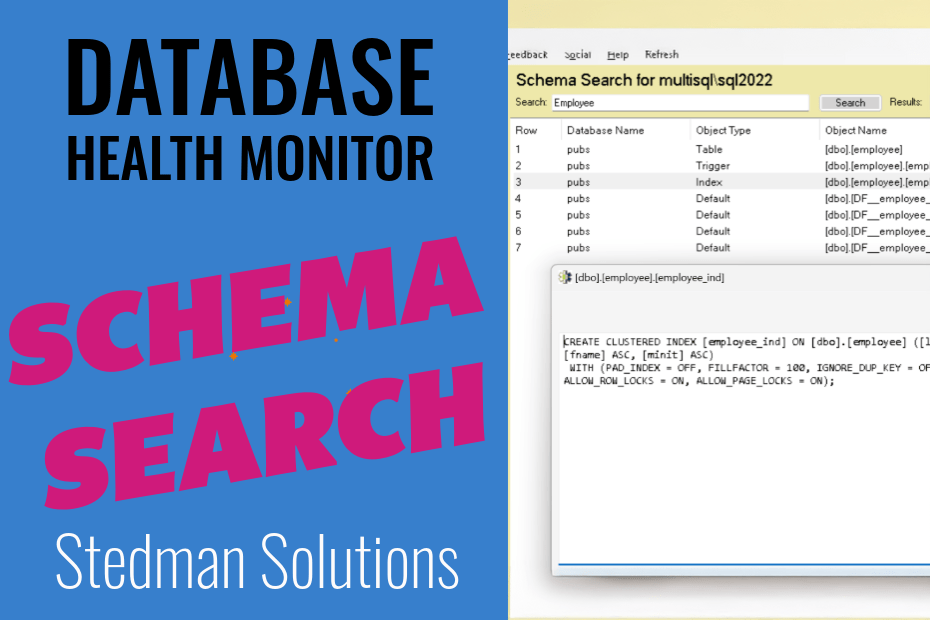
Schema Search solves a common SQL Server problem: if you’ve ever managed more than a handful of databases on an instance, you’ve probably faced the moment when you need to find a stored procedure with “Customer” in the name but have no idea which of your 30-odd databases it lives in. Or maybe you’re doing a security audit and need to find every object that references a specific table or column — across all databases, all at once.
That’s exactly the problem that the Schema Search feature in Database Health Monitor is built to solve.
What Is Schema Search?
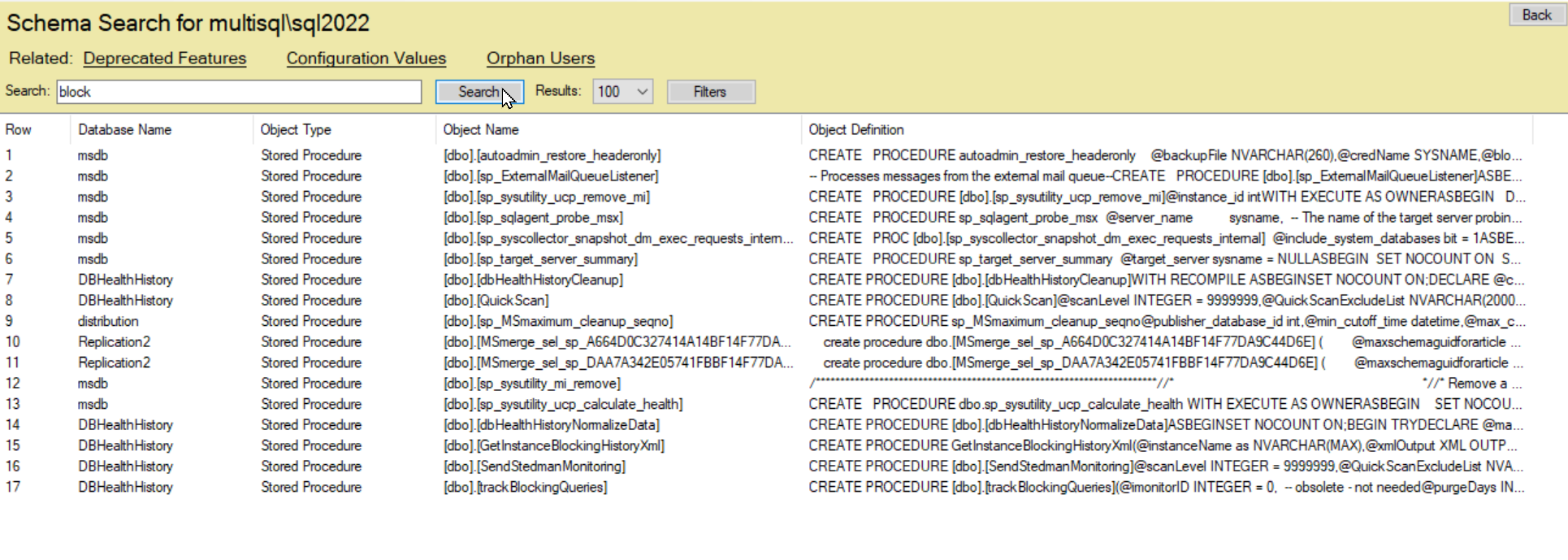
Schema Search is a cross-database object search built into Database Health Monitor. You type a search term, press Search, and it scans every accessible database on your SQL Server instance for any object whose name or definition matches what you typed.
It searches across many different object types:
- Tables, Views, Functions, Stored Procedures
- Indexes, Foreign Key Constraints, Primary Key Constraints, Default Constraints
- Table-level and Database-level Triggers
- Schemas, Users, Roles, Permissions
- Synonyms, Assemblies, Sequences
- Partition Functions, Partition Schemes
- Message Types, Service Broker Contracts
- Rules, XML Schema Collections
Most tools let you search within a single database. Schema Search spans the whole instance.
Result Limits and the Stop Button
Searches across a busy instance with many databases and object types can take a while. The UI gives you control in two ways:
Result limits — A dropdown lets you cap results at 10, 25, 50, 100, 250, 500, or 1000 rows. The default is 100. Once that limit is hit, the cursor stops iterating early, so you’re never waiting for a query that’s already found everything you need.
Stop button — A cancellation token lets you abort mid-search if you’ve already found what you were looking for. The search respects this between each object type, so it stops cleanly without killing the connection.
The progress bar shows which object type is currently being searched (“Searching Stored Procedures…”) so you have a sense of where you are in the process.
Filters: Narrowing the Scope
The Filters dialog gives you two independent filter lists:
Database filters — Pin the search to specific databases. Useful when you already know the schema you’re interested in, or when you have dev/test/prod databases on the same instance and don’t want cross-contamination in your results. These filters are stored per-instance in the settings file (encrypted, since database names can reveal infrastructure details).
Object type filters — Restrict the search to only certain object types. If you only care about stored procedures and functions, there’s no reason to wait while it also searches message types and XML schema collections.
Without any filters set, Schema Search casts the widest possible net.
Drilling Into Results
Results appear in a list view with five columns: row number, database name, object type, object name, and a preview of the object definition.
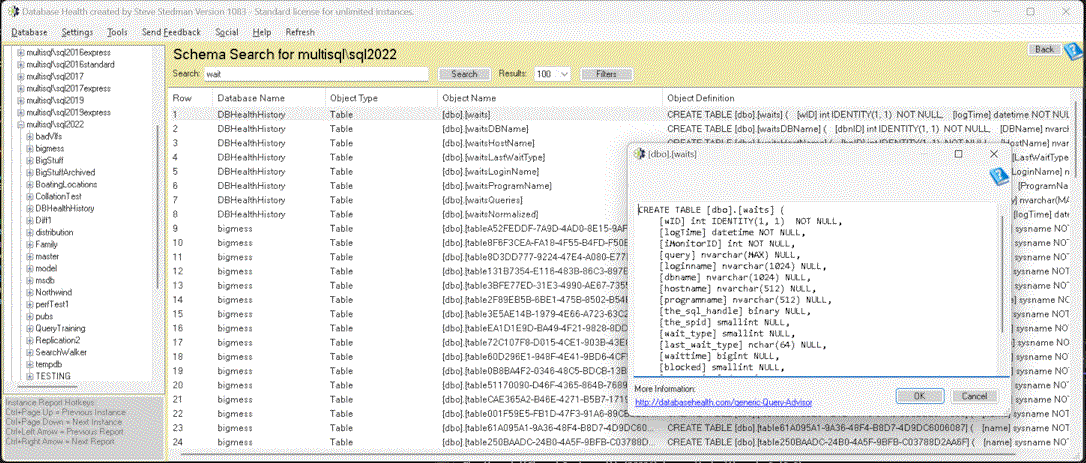
Double-clicking any result opens the full object definition in a query viewer — the complete CREATE statement for that object, shown in context with the database it belongs to. This is particularly useful when the search term matched inside the body of a stored procedure or function and you want to see the surrounding code.
Practical Use Cases
- Finding a lost object — You know a function called something like fn_CalcDiscount exists but can’t remember which database. Search for CalcDiscount and it surfaces immediately.
- Impact analysis before a schema change — Before renaming a table column, search for the column name to find every stored procedure, view, and function that references it across all databases.
- Security audits — Search for keywords like xp_cmdshell, OPENROWSET, or EXECUTE AS to find all objects using those patterns across the instance.
- Onboarding to an unfamiliar instance — Search for business terms to quickly build a map of where key logic lives across a large estate of databases.
- Finding duplicate logic — Search for a function or logic fragment to see if it’s been re-implemented in multiple databases instead of centralized.
Where to Get It
Schema Search is part of Database Health Monitor, an cost effective SQL Server DBA tool for Windows. If you’re already using it, Schema Search is available from the instance-level navigation. If you’re not, it’s worth a look — it covers a lot more than just schema search, including index health, wait stats, query performance, and more.
Check out this offer:Explore our Database Health Monitor special pricing.
Here are all the discounts for Database Health Monitor. Pick the one that fits your server count.
25% off 1 Instance – Code: 25OFF1
25% off 10 Instances – Code: JULY25
25% off 20 Instances – Code: 25OFF20 – Best Value
Free Backup and Restore Course when You Purchase Database Health Monitor
Purchase a new one-year Database Health Monitor subscription during the fourth week of July and receive our SQL Server Backup and Restore Course free of charge. Backups are your last line of defense when disaster strikes, but many organizations don’t discover problems until they need to perform a restore. This course walks through backup strategies, recovery models, restore techniques, and best practices to help ensure your data is protected and recoverable when it matters most. Pairing strong backup practices with the monitoring capabilities of Database Health Monitor gives you greater confidence in the health and resilience of your SQL Server environment. A $39.99 value included free with your purchase.